Communications Platform CP
Page
Iii
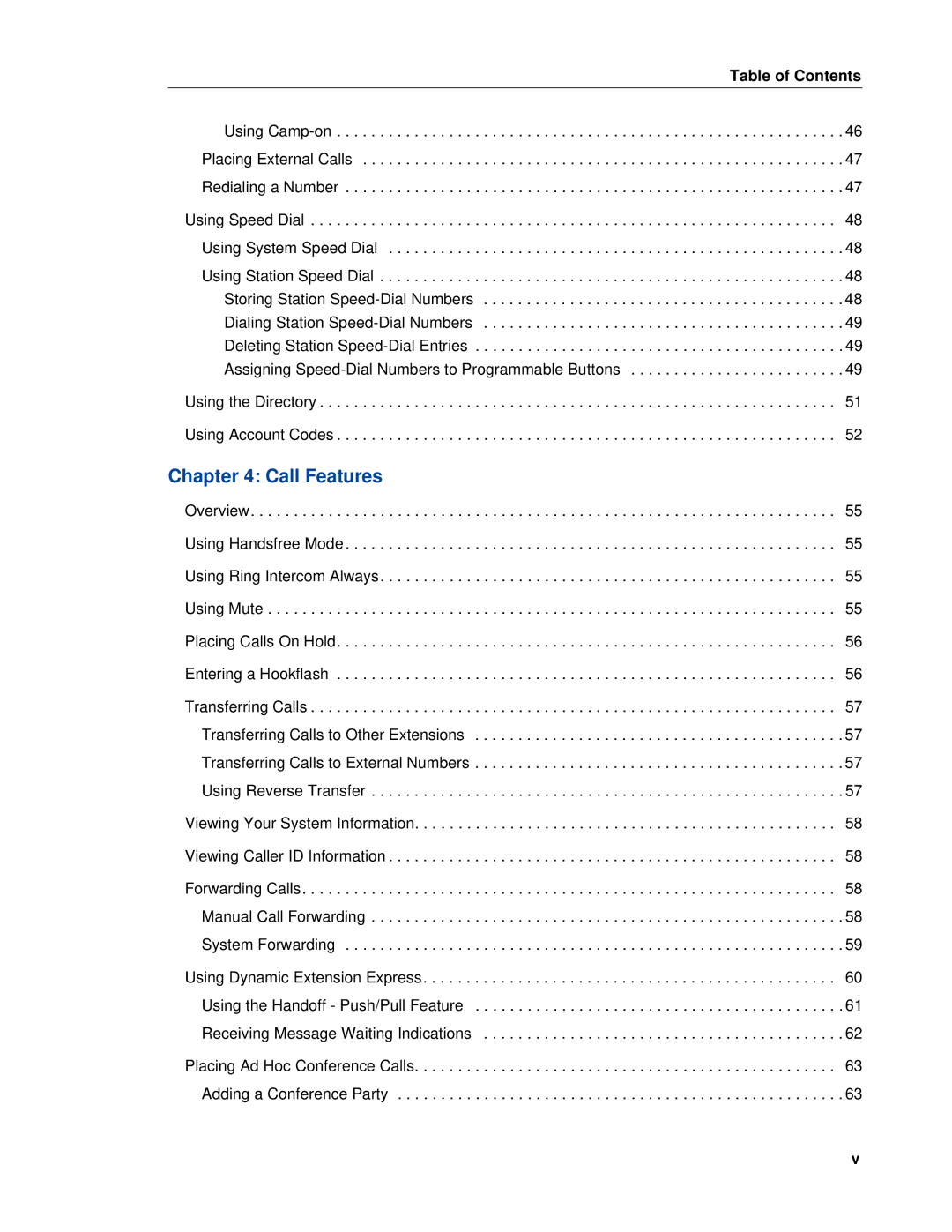
Table of Contents
Mitel 5320e/5330e/5340e User Guide
Answering and Placing Calls
Call Features
Messages
Vii
Hunt Groups
Viii
Chapter
Mitel 5320e/5330e/5340e User Guide
Getting Started
Welcome
About Your IP Phone
5320e/5330e IP Phone Features
5330e IP Phone
Handset
5340e IP Phone Features
Phone Feature Descriptions
Feature Buttons
Ring/Message Indicator
Display
Speaker
Programmable Buttons
Dialpad Buttons
External Speaker
Menu Buttons 5340e IP Phones only
Navigation Page Buttons
Comfort and Safety Tips
Phone Signals
To view system information
Viewing the Phone Information
To connect and activate the headset
Using a Headset
Turning the Conference Unit On and Off
Using the 5310 IP Conference Unit
Accessing/Exiting the Conference Controller Application
Placing the Conference Unit in Presentation Mode
Adjusting the Conference Unit Volume
To enable/disable Presentation Mode
Muting the Conference Unit
Using the Line Interface Module LIM
To make a call using the Analog line
Making and Answering Calls Using the Analog Button
To answer a Call using the analog line
To end a current call when an incoming analog call arrives
Making and Answering Calls Using the Failover Mode
Mitel 5320e/5330e/5340e User Guide
Personalizing Your Phone
Mitel 5320e/5330e/5340e User Guide
To adjust the viewing angle
Adjusting the Viewing Angle
Overview
Personalizing Your Phone
To change a volume level
Changing Volume Levels
Changing the Ring Tone
To change the ring tone
To adjust the Contrast or Brightness levels
Adjusting the Display Contrast and Brightness
Press Settings, and then press Brightness and Contrast
Changing the Language
Press Large Text or Small Text
Changing the Text Size on the Display
To change the text size on a display
To configure the screen saver on your IP Phone
Using the Screen Saver
To wake your IP phone from screen saver mode
To view your call history
Viewing Call History
Viewing Call History
Reviewing Call Record Icons
Deleting Call Records
To delete an individual call record
Press Delete Log Entry To delete all calls by type
Adding Names to Your Contact List
Cutomizing Your Contact List
Editing Your Contact List
Press Edit Name
To play the beep, press Play button beep or Play error beep
To adjust the volume of the audio feedback
Specifying Audio Feedback Options
Dialing from Your Contact List
To use the dialpad to enter characters
Using the Dialpad Buttons to Enter Characters
Dialpad Characters Mexican Spanish
Dialpad Characters Canadian French
To program a button
Using Programmable Buttons
Lamp Signals Description
To cancel the feature
Outside Line Access Codes
Extension Numbers
To delete the characters entered
Feature Code New Code
Headset On/Off
System Forward Off
Viewing Button Assignments
Resetting Programmable Buttons
Listening to Background Music
Switching Keymaps
Resetting the IP Phone to the Default Settings
To reset your IP phone to the default settings
To switch between keymaps when your IP phone is idle
To unlock a door
Activating Door Relay
Answering and Placing Calls
Mitel 5320e/5330e/5340e User Guide
Answering Waiting Calls
Using Automatic Call Access
Answering Calls
Redirecting Calls
Using Automatic Trunk Answer
To redirect calls
To use Automatic Trunk Answer
Placing Emergency Calls
Placing Emergency Calls using the LIM Line
Placing Calls
Requesting a Callback Queuing the Phone
Using Camp-on
Placing Internal Calls
Redialing a Number
Placing External Calls
To place an external call
To use Redial
Using System Speed Dial
Using Speed Dial
Using Station Speed Dial
Storing Station Speed-Dial Numbers
Assigning Speed-Dial Numbers to Programmable Buttons
Dialing Station Speed-Dial Numbers
Deleting Station Speed-Dial Entries
To program a System Speed-Dial button
Button Characters Represented
Using the Directory
To search for a directory name or feature
To enter an optional account code
Using Account Codes
To disable the code
Call Features
Mitel 5320e/5330e/5340e User Guide
Using Mute
Using Handsfree Mode
Using Ring Intercom Always
Entering a Hookflash
Placing Calls On Hold
Transferring Calls
Using Reverse Transfer
Transferring Calls to Other Extensions
Transferring Calls to External Numbers
Viewing Caller ID Information
Viewing Your System Information
Forwarding Calls
Manual Call Forwarding
To cancel a Manual Call Forwarding request
Call Features To use Manual Call Forwarding
System Forwarding
To turn System Forwarding on or off
To enable Dynamic Extension Express
Using Dynamic Extension Express
To disable Dynamic Extension Express
To answer a call routed to your mobile or home phone
To use the Dynamic Extension Express Handoff pull feature
Using the Handoff Push/Pull Feature
To use the Dynamic Extension Express Handoff push feature
Receiving Message Waiting Indications
To cancel the Dynamic Extension Express Handoff feature
Adding a Conference Party
Placing Ad Hoc Conference Calls
Transferring a Conference
To place a conference call
To toggle between the held callers
Ending a Conference and Placing all Parties on Hold
To return to the conference
Access Codes
Using Meet-Me Conferencing
Setting Up a Meet-Me Conference
To set up a Meet-Me Conference using a personal access code
Dropping Out of a Meet-Me Conference
Joining a Meet-Me Conference
To join a Meet-Me Conference
To exit a Meet-Me Conference
Transferring a Meet-Me Conference
Putting a Meet-Me Conference on Hold
To put a Meet-Me Conference on Hold
To return to the Meet-Me Conference
Using Group Listen
Using Record-A-Call
To use Record-A-Call
To use Group Listen
To use Call Logging
Using Call Logging
To return a call or redial a number listed in a call log
To delete individual call log entries
Using Secondary Extension Buttons
To log off of a Hot Desk session
Using Hot Desking
To log on to a Hot Desk-enabled base phone
Accessing the Configuration Assistant
Using the Configuration Assistant
To access the Configuration Assistant
Changing Your Station Passcode
Changing the DND Settings
Changing the Dynamic Extension Express Settings
To change the DDE settings using Configuration Assistant
To change the DND settings using Configuration Assistant
To create a new Meet-Me Conference access code
Changing the Manual Call Forwarding Settings
Managing Meet-Me Conferencing Access Codes
To list all of your existing Meet-Me Conference access codes
To enable Dynamic Extension Express using Remote Programming
Using Remote Programming
To turn on Manual Call Forwarding using Remote Programming
To turn on DND using Remote Programming
To turn off DND using Remote Programming
To change your station passcode using Remote Programming
Messages
Mitel 5320e/5330e/5340e User Guide
Messages
Leaving Messages at Other Extensions
Deleting Waiting Inter-Station Messages
Canceling Messages Left at Other Extensions
Viewing and Responding to Messages
Code Default Message New Message
Using Do-Not-Disturb DND
To turn on DND
To turn off DND
To cancel all Reminder message requests
Using Reminder Messages
Code Default New Message
To set a Reminder message
To enable or disable paging for your IP phone
Enabling or Disabling the Page Feature
Paging Other System Users
Placing a Page Announcement
Mitel 5320e/5330e/5340e User Guide
Hunt Groups
Mitel 5320e/5330e/5340e User Guide
To log in to one or more ACD hunt groups
Logging in to ACD Hunt Groups
Hunt Groups
To stop the wrap-up timer
Stopping the ACD Hunt Group Wrap-up Timer
Logging out of ACD Hunt Groups
To log out of one or more ACD hunt group
Requesting Agent Help
Other Hunt Group Features
Diverting Hunt Group Calls
To use Agent Help
Accepting or Rejecting Agent Help Calls
Hunt Group Supervisor Features
Monitoring Calls
Stealing Hunt Group Calls
To monitor and/or barge in on a call
Using Barge-In
Mitel 5320e/5330e/5340e User Guide
Cordless Devices
Mitel 5320e/5330e/5340e User Guide
Cordless Devices
Feature Function
Cordless module is shown here
Cordless Module
Handset and Headset Combinations
Pairing the Cordless Module and Devices
To pair a cordless device
To unpair a cordless device
Alerting Tones and LEDs
Using a Cordless Device as a Remote Control
100
Blue LED Function
Cordless Handset Features
Low Battery Level
Cordless Handset
101
Hanging Up
Answering Calls
Cordless Handset LEDs
To hang up
103
Cordless Headset Features
Cordless Headset
104
Using the Cordless Devices Application
Cordless Headset LEDs
105
Viewing Cordless Module Information
To view cordless module information
Mitel 5320e/5330e/5340e User Guide 106
Troubleshooting
Mitel 5320e/5330e/5340e User Guide 108
109
Troubleshooting
Contact Information
Message Reason
Error Messages
110
111
Troubleshooting Tips
Problem Possible Solution
Mitel 5320e/5330e/5340e User Guide 112
113
Index
114
115
116
117