Apple Technician Guide IMac 27-inch, Mid
USA
Troubleshooting
Contents About This Guide
Basics
Symptom Charts
General Information
Take Apart
Vertical Sync Cable Vsync
Bluetooth Board
LCD Panel
Handling the Panel
Video Card
Views
Additional Procedures
Apple Technician Guide About This Guide
Feedback
Updates
Updated 9 September
Updated 9 August
Apple Technician Guide Basics
Overview
Product Configurations
Identifying Features
Safety Precautions
Serial Number Location
About the Indicator Light
New Accessories Magic Trackpad
Pairing the Magic Trackpad
Batteries
Apple Battery Charger
Apple Technician Guide Troubleshooting
Troubleshooting Theory
General Troubleshooting
Wireless Troubleshooting
Update System Software & Firmware
Hardware vs. Software
Common Reset Procedures Power On Self Test Post
Resetting Parameter RAM Pram
Resetting the System Management Controller SMC
Starting Up in Safe Mode
Removing the Battery, Measuring DC Voltage
Suggested Action
Diagnostics
Sensors Errors
Sensor
Board Sensor cable if damaged
Logic board this sensor is part Video card assembly
Sensor Locations
Sensor Connector Locations Top Side of Logic Board
Sensor Connector Location Back Side of Logic Board
Location of Diagnostic LEDs
Diagnostic LEDs
LED #3
LED Functions
LED #1
LED #2
LED #1 + LED #2 = Power available, and system is powered on
LED #1 = Power available
LED Startup Sequence
Function
According to user setup
Board, to enable backlight
Logic Board Test Points
Functional Overview
Refer to this diagram to see how modules are interrelated
Block Diagram
Check Result Action Code
Symptom Charts
No Power, Dead Unit
Symptoms Quick Check No Power, Dead Unit
To Won’t Start Up symptom
Won’t Start Up
Symptoms Quick Check Won’t Start Up
Safe Boot, Safe Mode?
Sequence and error codes, symbols for
Go to Optical Drive Not
Using a digital multimeter
Go to AirPort Card Kernel
Go to Hard Drive Not
Intermittent Shutdown
Troubleshooting Shutdown Causes
Power-related system shut downs
Make sure that power cord is securely attached
Symptoms Quick Check Intermittent Shutdown
Powers off during startup
Cord and AC outlet, Verify if
Hard drive, update OS with
OS on an external drive. Verify Recognized symptom flow
Supply replacement
P17
X03
M23
X22
Kernel panic messages
Symptoms Quick Check Kernel Panic, System Crashes
Kernel Panic, System Crashes
About You need to restart your computer
Go to SD Card Not
Go to Camera Issues or
Go to AirPort/Bluetooth
X01
Go to Won’t Start Up
Symptoms Quick Check No Video
Go to Backlight Issue/No
No Video
L03
Diagnostic LEDs on edge
Locate diagnostic LEDs on
M03
Video drivers, software, or video/logic board
Symptoms Quick Check Corrupted Video
If issue cannot be seen in the screenshot then
Corrupted Video
M04
Cable and go to step
Utility Diagnostic and enter
Resolved with replacement LCD panel
Disconnect DisplayPort cable Yes Replace DisplayPort cable
Burnt Smell/Odor
Symptoms Quick Check Burnt Smell/Odor
No Power, Dead Unit symptom flow
Uncategorized Symptoms
Smfeedback2@apple.com
Symptoms Quick Check Backlight Issue/No Backlight
Backlight Issue/No Backlight
Display
Panel. Run Apple Service Display Utility to verify
Panel with correct backlight
Logic board and LCD panel
Display Backlight Issue / No Backlight
Symptoms Quick Check Noise / Unstable Flickering
Noise / Unstable Flickering
Utility to verify the resolution
Run Apple Service Display
Symptom flow Issue resolved
When adjusting brightness level
To Noise/Hum/Vibration
LCD Image Issues
Go to non-uniform
Go to pixel anomalies
Go to vertical/horizontal
Lines
Incorrect/Missing Colors
Symptoms Quick Check Incorrect/Missing Colors
L02
Yes Replace LCD panel. Run
Software issue exists
Symptoms Quick Check Distorted/Blurred Image
Clean outside of glass panel
Boot from install DVD to determine if a potential
Reinstalling internal DisplayPort
Pixel Anomalies
Do not replace LCD panel
L08
M24
Symptoms Quick Check Vertical/Horizontal Lines
Vertical/Horizontal Lines
Noise / Unstable Flickering
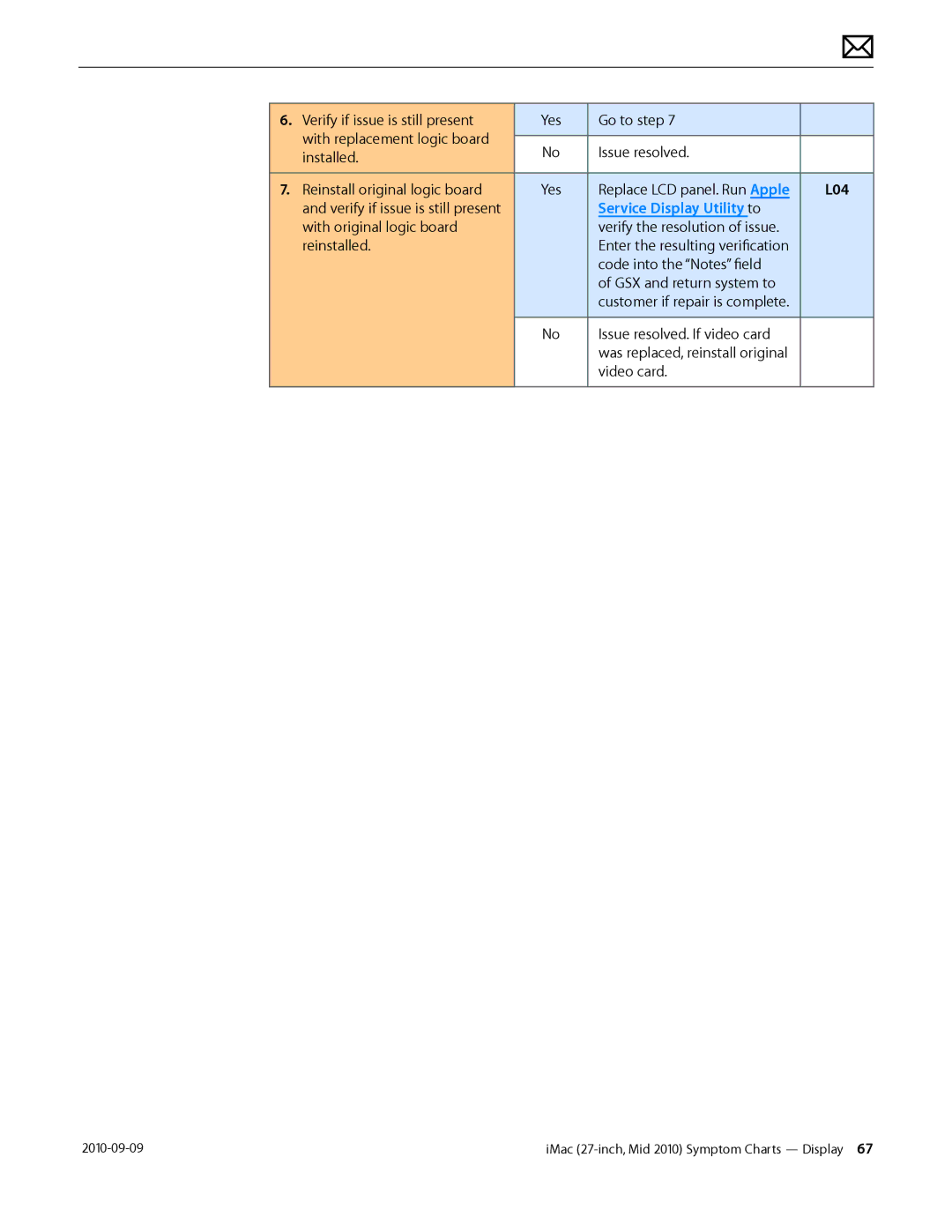
Issue resolved. If video card
Service Display Utility to
L04
Service Display Utility. To
Symptoms Quick Check Non-Uniform Brightness/Color
Non-Uniform Brightness / Color
Cosmetic Defects
Symptoms Quick Check Cosmetic Defects to LCD
Cracked glass panel
Hard Drive Not Recognized
Symptoms Quick Check Drive Not Recognized
Drive No Boot
Error codes, symbols
System boots successfully To user
Check that the 4 wire Sata Yes Replace any damaged Sata
Power cable carrying 12v
Logic board Reboot computer. Verify if Yes
Go to Optical Drive Read
Hard Drive Read/Write Errors
H03
Mac OS without errors
H04
If computer starts up
Refer to Kbase article TS3204 Evaluating
Symptoms Quick Check Hard Drive Noisy
Hum/Vibration symptom
Hard Drive Noisy
Hard drive
H06
Go to Fan Failures/Thermal
Optical Drive Not Recognized
Symptoms Quick Check Drive Not Recognized/Mount
Drive Won’t Eject Media
Symptoms Quick Check Drive Won’t Accept Media
Not Recognized symptom flow
Optical Drive Won’t Accept/Eject Media
Symptoms Quick Check Drive Read/Write Data Error
Optical Drive Read/Write Error
J03
Diagnostics, replace optical Drive
Replace optical drive Install known-good optical
Drive SATA+Power cable
Issue resolved CD and DVD media. Verify if
Same type to rule out media issue
Optical Drive Not Performing to Specifications
Symptoms Quick Check Optical Drive Not Performing to
Specifications
Optical drive
Running diagnostics, replace
Compare system with similar
Symptoms Quick Check Optical Drive Noisy J04
Optical Drive Noisy
Test optical drive with different
Tighten SD reader board Now fits in slot Screws. Go to step
SD Card Will Not Insert Into Slot
Seat into slot Media Cards MMC
Verify if known-good SD card
SD Card Not Recognized
Symptom Quick Check SD Card Not Recognized
Correctly read and written
Interference
AirPort/Bluetooth Issues
Issue. See kBase #HT1365 Airport potential
KBase #HT1365 AirPort Potential source
N04
Html?path=AirPort/5.0/en
M11
Bluetooth issues are resolved
Discoverable mode. Verify if
AirPort Card Kernel Panic
Symptoms Quick Check AirPort Card Kernel Panic
Symptoms Quick Check Ethernet Port/Device Issue
Ethernet Port/Device Issue
Html?path=Mac/10.6
Wireless Input Device Does Not Pair
KBase #HT2532 Mac OS How to change the MTU for
Troubleshooting purposes
Loses Connection symptom
Go to Wireless Input Device
Go to step With customer’s mouse Yes
Connector is damaged
Go to Wireless Input Device Loses Connection symptom
Verify System Preferences/Network settings
Apple Remote Inoperable
Symptoms Quick Check Apple Remote Inoperable
That computer now
Yes Lens blocked or sensor not
Responds to Apple Remote
Audio Microphone
Symptoms Quick Check Audio Microphone
M09
Is normal during playback
Inspect microphone cable Yes Replace rear housing
Audio Built-in Speakers Have Distorted Sound
L14
Audio
Symptoms Quick Check
See kBase #TS1574 Troubleshooting issues
Audio No Audio from Built-in Speakers
Go to step Quality is acceptable Set speaker balance 100%
Device, replace audio cable
Output and verify that Internal
Board Go to System Preferences
Persists, verify if symptom has
Symptoms Quick Check Camera Issues
Camera Issues
Mode. Verify if FireWire device
FireWire Device Not Recognized
For external FireWire drives, make sure any
Unplug all FireWire devices
Software on User account. Issue
USB Device Not Recognized
Symptoms Quick Check USB Device Not Recognized
M15
Bluetooth not recognized
Go to Keyboard Specific Keys Do Not Respond
Wired Keyboard Does Not Function Properly
Symptoms Quick Check Wired Keyboard Does Not
Function Properly
Accept/Eject Media
Go to Optical Drive Won’t
Input Device Doesn’t Pair symptom flow to
Wired Keyboard/Mouse Not Recognized
Keyboard Specific Keys Do Not Respond
Not Function Properly
Clean your Mighty Mouse
Troubleshooting Mighty Mouse and determining
Go to USB Device Not
Pair with computer
Not charge batteries
Not charge batteries
Symptoms Quick Check Apple Wireless Mouse/Magic
Apple Wireless Mouse/Magic Trackpad Erratic Tracking
Trackpad erratic tracking
Wireless Input Device Loses Connection
K08
P10
Apple Battery Charger Does Not Charge Batteries
Charge Batteries
P01
Device is supported with user’s system
Was installed in charger
Software is installed and up-to-date, and that
Vary from 80% to almost full
Noise/Hum/Vibration
Symptoms Quick Check Noise/Hum/Vibration
Stand/Hinge Issues symptom flow
Unstable Flickering symptom flow
Board. Go to Noise/Unstable
Location table in General
Go to Optical Drive Noisy
Go to Audio Built-in Speakers Have Distorted
P04
From fan housing
Reinstall fans while carefully Yes
Being used When working around an Energized system
System feels very hot
Fan Failures / Thermal Issues
Symptoms Quick Check Fan Failures / Thermal Issues
Verify that vents on bottom and back of system
Manuals available at http//support.apple.com
Stand/Hinge Issues
Symptoms Quick Check Stand/Hinge Issues
X23
Broken glass
Symptoms Quick Check Physical Damage
Physical Damage
Verify if damage caused by user environment
Service Source Take Apart
KBase #HT3452 Hand Tools for Desktop and Portable Repairs
General Information
Opening the Unit
Required Tools
Required Special Tools for Glass Panel
Cleaning Tools Starter Kit
Do’s and Don’ts
Cleaning & Handling the Glass Panel
Handling a Broken Glass Panel
How to Remove a Broken Glass Panel
IMac 27-inch, Mid 2010 Take Apart General Information
IMac 27-inch, Mid 2010 Take Apart General Information
IMac 27-inch, Mid 2010 Take Apart General Information
IMac 27-inch, Mid 2010 Take Apart General Information
Safety
Logic Board Handling
Reassembly Steps
Screw Sizes
ESD mat and wrist strap Phillips #2 screwdriver
Access Door
First Steps
Tools
Removal
ESD mat and wrist strap
Access door
Memory
Remove
Reassembly
Shut down unit Unplug all cables Put on ESD strap
Glass Panel
Microfoam bag
Removal
Reassembly
Set unit in upright position to minimize settling of dust
IMac 27-inch, Mid 2010 Take Apart Glass Panel
Glass panel
Camera
Removal
Reassembly
LCD Panel
Remove 8 T10 screws
Reassembly Note
IMac 27-inch, Mid 2010 Take Apart LCD Panel
Pull display forward slightly to disconnect