Modero CV7
AMX Limited Warranty and Disclaimer
FCC Information
Page
Table of Contents
Panel Calibration
Upgrading Modero Firmware
Programming 135
Appendix B Wireless Technology 197
Table of Contents Modero Widescreen Touch Panels
FG2258-01K
CV7 7 Widescreen Video Touch Panel Kits
FG2258-02K
NXT-CV7
CV7 Specifications
Specifications for 7 Widescreen Video Touch Panels
Rear Panel Components
Using USB with a Virtual Master section on page 53 for more
Front Panel Components
Included Accessories
Cont
Button Assignments
Operating / Storage
CV7 Panels Connector Layout
USB
NXA-AVB/ETHERNET Breakout Box FG2254-10
Product Specifications
NXA-AVB/ETHERNET Specifications
Panels only
Installing the NXA-AVB/ETHERNET
Rear Components
Wiring the NXA-AVB/ETHERNET connectors and cables
Audio In Right Channel
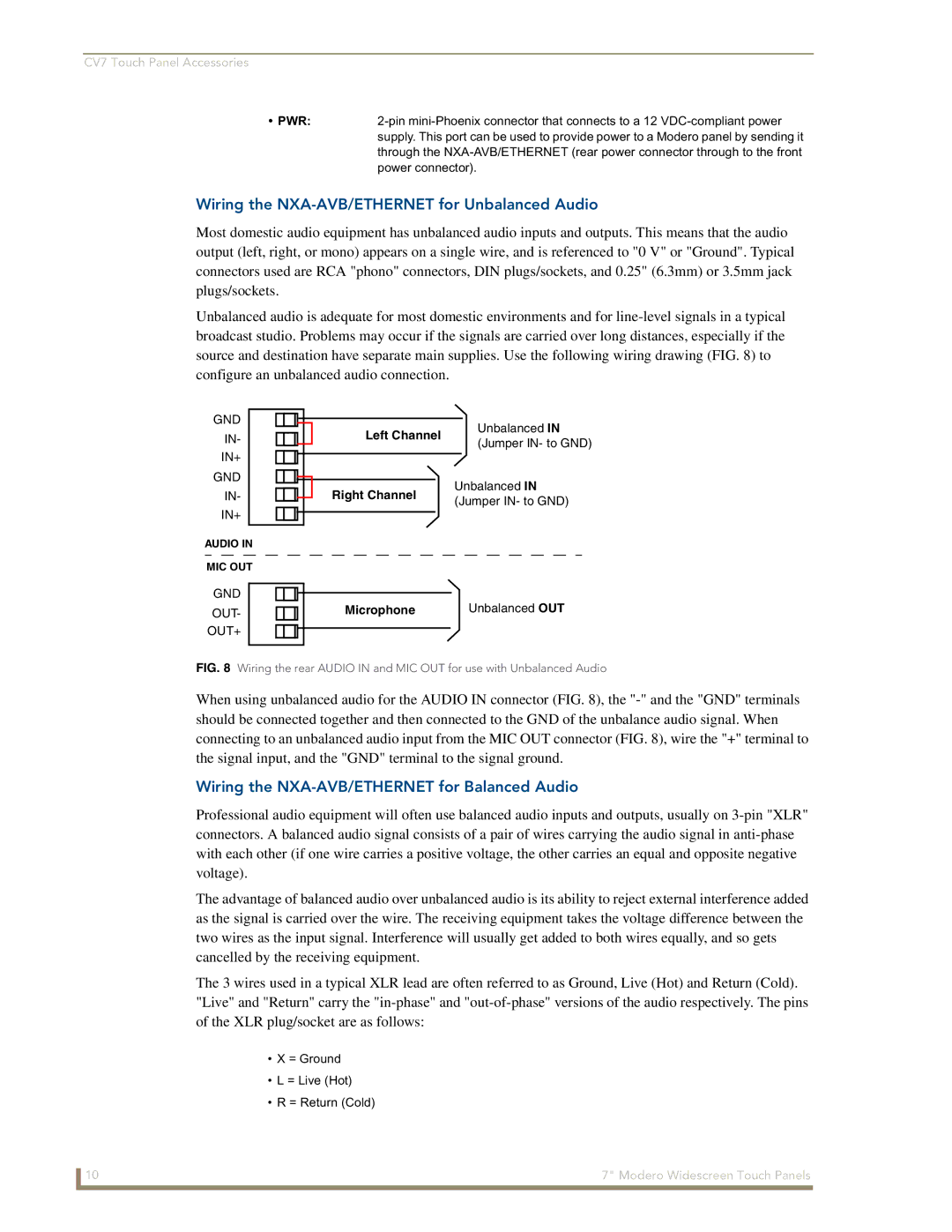
Wiring the NXA-AVB/ETHERNET for Unbalanced Audio
Wiring the NXA-AVB/ETHERNET for Balanced Audio
Modero Table Top Cable CA2250-50
Modero Table Top Cable Specifications
Connectors
Wiring information for the Modero Table Top cable
Modero Table Top Cable Wiring Table
Wire Connector
Maximum Table Top Cable Lengths for Modero Panels
Connector #1 Element #1 Binder Element #2
NXA-WC80211B/CF 802.11b Wireless Card FG2255-03
802.11b Wireless Interface Card Specifications
NXA-WC80211GCF 802.11g Wireless Card FG2255-07
NXA-WC80211GCF Specifications
Information
Radio Technology
Receiver Sensitivity
Standard Conformance Ieee 802.11b
Optional Compact Flash Upgrades
NXA-CFSP Compact Flash FG2116-3x
Remove the existing NXT Outer Housing
Before Upgrading the Wireless Card Read This
Installation and Upgrade of the Internal NXT Components
Do not Remove these screws
Install the Compact Flash Memory card upgrade
Removal of the outer housing and wireless card location
Install the new 802.11g CF Card and Antenna
Removing/installing a Compact Flash Memory card
Close and Resecure the NXT Panel Enclosure
Installation and Upgrade of the Internal NXD Components
Remove the existing NXD Outer Housing
Close and Resecure the NXD Panel Enclosure
Install the new Compact Flash Memory card NXD
Install the new 802.11g Wireless Compact Flash card NXD
Power Voltage
NXT-BP Power Pack FG2255-10
NXT-BP Specifications
Checking the NXT-BP charge
NXA-BASE/1 Battery Base Kit FG2255-05K
NXA-BASE/1 Specifications
Front
Installing an NXT-BP into the NXA-BASE/1
Installing the NXA-BASE/1 below an NXT-CV7 Panel
Back
NXT-CHG Battery Charger Kit FG2255-50K
Charging the NXT-BP using the NXA-BASE/1
Powering the NXT-CHG
NXT-BP and NXT-CHG Specifications
Green Solid
Reading the NXT-CHG LED Indicator
Charging the NXT-BP batteries using the NXT-CHG
Recalibrating the batteries
Unpacking the Panel
Installing the Internal Components
Installing the No-Button Trim Ring
CV7 Panel/enclosure Button latch Trim Ring
Installing the Button Trim Ring
Removing the No-Button Trim Ring
Pre-Wall Installation of the Rough-In Box
Installer Leave a GAP Between the Stud and ROUGH-IN BOX
Installation of an NXD Touch Panel
Installing the NXD panel within a Rough-In Box
Faceplate/Trim Ring Default Faceplate comes with buttons
Installing the NXD into drywall using Expansion Clips
NXD-CV7 Wall Mount panel dimensions using expansion clips
Display/Panel Timeout
Timeout
Connection Status
Inactivity Page Flip
Project Information
Project Information Page Elements
Panel Information
Panel Information Page Elements
Time & Date Setup
Time & Date Setup Page Elements
Time Date Refresh/Set
Time Display fields
Date Display fields
Volume
Volume Page Elements
Master Volume
Default Panel Sounds
Protected Setup
Video Adjustment
Supported sampling rates for WAV
Supported WAV Sampling Rates
Battery Base
Video Setup Page Elements
Battery Base Page Elements
Low Battery Warning
This value can never exceed the Low Battery Warning value
Charge Status
Protected Setup Navigation Buttons
Battery Status fields
Set on the Setup page. This extends the battery usage time
Limit
Protected Setup
Protected Setup Navigation Button Elements
Protected Setup Page Elements
Reboot Panel
System Recovery
Device Number
Protected Setup page-System Recovery confirmation dialog
G4 Web Control
G4 Web Control Settings
Remaining fields are configured
G4 Web Control Timeout
G4 Web Control Page Elements
Sensor Setup
Sensor Setup Page Elements
Dim Mode Minimum
Light Sensor
Light Level field
Motion Sensor
Wake Panel On Motion Sense
Password Setup
Password Setup Page Elements
Panel Password
Change
Wireless Settings
Calibration
Wireless Security Support
Wireless Settings Page Elements
802.11b Wi-Fi CF card
802.11g Wi-Fi CF card
Address
IP Settings
Access Point MAC
Wireless Security
Following fields are required Ssid and Password/Pass Phrase
Following fields are required SSID, Identity, and Password
EAP-PEAP EAP-TTLS EAP-TLS EAP-LEAP
Password
Site Survey
RF Link Info
Communication quality
Wireless Settings Page Security Options Overview
Wireless Settings Page Security Options Open Clear Text
Wireless Security Open Clear Text Settings
Save/Cancel
Wireless Settings Page Security Options Static WEP
Wireless Security Static WEP Settings
WEP 64 / WEP
Bit Key Size
WEP Keys
Wireless Security Static WEP
Default Key
Current Key
Wireless Settings Page Security Options WPA-PSK
Authentication
Password/Pass Phrase
Wireless Settings Page Security Options EAP-LEAP
Wireless Security WPA-PSK Settings
Identity
Wireless Security EAP-LEAP Settings
Password
Wireless Settings Page Security Options EAP-FAST
EAP-LEAP sample Cisco System Security
Wireless Security EAP-FAST Settings
Anonymous Identity
PAC File Location
Disabled manual
Been Disabled
EAP Security’s Using Server Certificates Overview
Wireless Settings Page Security Options EAP-PEAP
Wireless Security EAP-PEAP Settings
Ssid Service Set Identifier
Wireless Settings Page Security Options EAP-TTLS
Wireless Security EAP-PEAP
Wireless Security EAP-TTLS Settings
Wireless Settings page EAP-TTLS security method
MSCHAPv2 default because its the most common
This field is optional and can be left blank
Wireless Settings Page Security Options EAP-TLS
Wireless Security EAP-TLS Settings
Private Key
Private Key password
Client Certificate
Client certificate configuration
Client Certificate Configuration
Certificates and their Extensions
Certificate Type Possible File Extensions
Certificate Types Supported by the Modero Firmware
System Settings
System Settings Page Elements
Full Duplex
Master Connection
134 Modero Widescreen Touch Panels
Commands
Commands
Button Assignments
@APG
@DPG
@PDR
@PHE
@PHP
Close all popups on Page1
Deactivate a
Deactivates the popup page ’Popup1’ on the Main Example
Deactivates the popup page ’Popup1’ on the current
@PPM
@PPN
@PPT
@PPX
@PST
@PSE
@PSP
Ppon
Ppof
Ppog
Programming Numbers
RGB triplets and names for basic 88 colors
RGB Values for all 88 Basic Colors
Index No Name Red Green Blue
142 Modero Widescreen Touch Panels
Font ID # Font type Size
Default Font Styles and ID Numbers
Font styles and ID numbers
Border styles
Border styles
TPD4 Border Styles by Name
Modero Widescreen Touch Panels 145
Button Commands
Button Commands
ANI
APF
Sendcommand Panel,BAT-520,1,Enter City
Sendcommand Panel,BAU-520,1,00770062
BAT
BAT-vt addr range,button states range,new text
BCB
BCF
BFB
BCT
BDO
BLN
BIM
Entry is required
Sendcommand Panel,BMC-150,1,1,315,1,%BR%FT%TX%BM%IC%CF%CT
BMC
BMF
BMF-vt addr range,button states range,data
BMF
BMI
BML
BMP
BNC
BOP
BNN
BNT
BPP
BOR
BOS
BRD
BSF
BSM
BSO
BVL
BVN
BVP
BVT
CPF
DPF
ENA
FON
GDI
GIV
GLH
GLL
GRD
GRU
GSC
GSN
JSI
ICO
JSB
JST
MBT
Pass data
MDC
TEC
TEF
Effect names
TXT
Sendcommand Panel,UNI-500,1,0041
Sendcommand TP,UNI-1,0,0041
UNI
UNI-vt addr range,button states range,unicode text
Text Effect Names
Text Effects
Button Query Commands
Defineevent
Button Query Commands
Custom Event Fields
Field Description
?BCB
?BCF
?BCT
?BMP
?BOP
?BRD
?BWW
?FON
?ICO
?JSB
?JSI
?JST
?TEC
Send Command Panel,?TEF-529,1
Send Command Panel,?TXT-529,1
?TEF
?TEF-vt addr range,button states range
Panel Runtime Operation Commands
Panel Runtime Operations
@AKP
@AKR
Beep
Brit
Setup
@EKP
Pkeyp
@PKP
@SOU
@TKP
Tpageon
Tpageoff
Input Commands
Input Commands
CAL
KPS
Decimal numbers Hexidecimal values Virtual keystroke
Embedded codes
Embedded Codes
Panel Setup Commands
Panel Setup Commands
Dynamic Image Commands
Dynamic Image Commands
RAF-resource name,data
Troubleshooting Information
Symptom Solution Updated my panel firmware but
My Battery Base page doesn’t
My NXT-BP battery pack is
Life indicator
Symptom Solution
Connecting
Was using the power from PSN
When I connected my
My battery from within an
NXA-BASE/1 connected to a pow
Ered panel
My WEP doesn’t seem to be
Connected to my System Master
Only one shows up
After downloading a panel file or
Behaves strangely
Troubleshooting 190 Modero Widescreen Touch Panels