HP DeskJet 400 Printer Technical Support Solutions Guide
HP DeskJet 400 Printer Technical Support Solutions Guide
Page
Iii
Publication History
Trademark Credits
Conventions
About This Guide
Page
Contents
Printer Drivers
Contents-2
Operation and Usage
Problem Resolution
Contents-3
Chapter Service and Support Information
HP PCL Printer Commands and Control Codes
Contents-4
Appendix a
Chapter Installation and Configuration
List of Tables-1
Chapter Problem Resolution
Chapter Operation and Usage
Chapter Printer Driver Information
List of Tables-2
Chapter Contents
Product Information
Model Numbers and Product Positioning
Support Tools
Product Positioning
HP DeskJet 400 Printer
Confidence in software compatibility
Features and Benefits
HP DeskJet 400 Printer Features and Benefits
Presentation quality color output capability using
Driver
Transparency support black and color
HP Premium Paper
Views
HP DeskJet 400 Printer
Intercon
Printer Options
HP DeskJet 400 Printer Options Region
Plug Type
Power Adapter Part Numbers
Power Adapters
Chile Latin America 9100-5346
Supplies and Accessories
HP DeskJet 400 Printer Supplies and Accessories Part Number
User Documentation
HP DeskJet
Internal Fonts
Internal Portrait Fonts
Portrait Fonts
Internal Landscape Fonts
Category Specification
Specifications
Performance Specifications
20,000 hours Mechanism life 25,000 pages
10. Reliability Specifications Category
Printer usage
13. Physical Specifications Approximate
Printer with the paper tray closed
Width
Height
14. Packaging Dimensions Specifications
Length Width Height
15. Environmental Specifications Category
46 dBA
EMI Certification
16. Product Safety Specifications
Safety Certification
17. Paper Handling Specifications
Media size Letter Mm 297 mm Legal Executive 25 in .5
Mm 257 mm
US No envelope 12 in .5 DL envelope Mm 110 mm
Printable Area Portrait Orientation
Printable Area Landscape Orientation Product Information
18. Printable Area1,2 Portrait Mode
Left Margin Right Margin
19. Hewlett-Packard Print Cartridge Specifications Category
Product Information
Installation and Configuration
Installation and Configuration
Color Kit
Items Included
Centronics Parallel Interface Cable
Connecting Power to the Printer
Connecting the Printer to a Power Adapter
Centronics Parallel Interface Pinout Information
Description
Installation and Configuration
Mode LPT1 RETRY=R
For DOS 5.0 and DOS 6, send
Installing Windows Printer Drivers
Installing the Printer Driver for Microsoft Windows Users
Configuration Options with the DJPMenu Configuration Utility
Setting up the Printer
Configuring the Printer
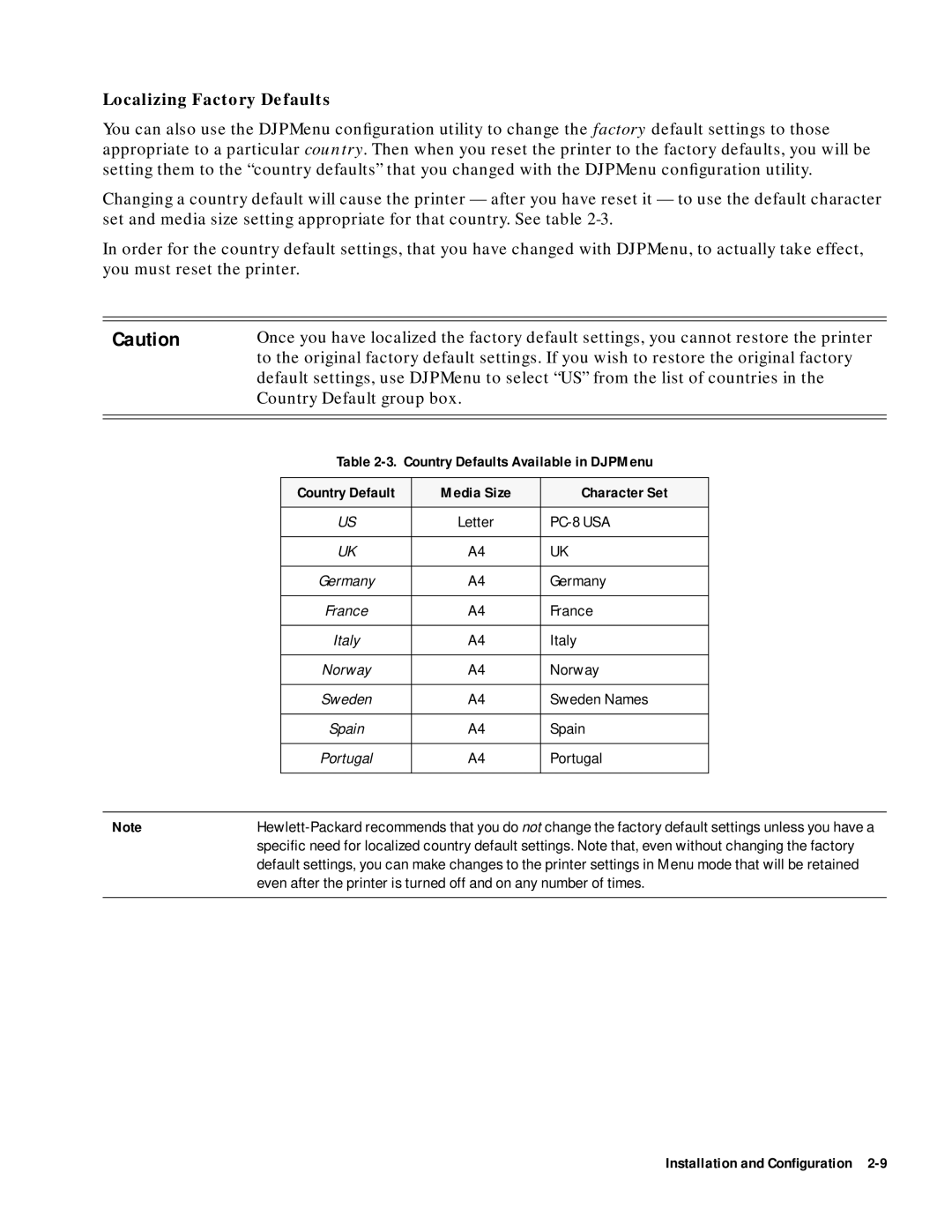
Norway
Country Defaults Available in DJPMenu
Character Set
Installation and Configuration
Operation and Usage
Printer Buttons and Lights
Loading Media
Description of Printer Buttons and Lights
Icon Button or Light Description
Normal Printing from the Paper Tray
Or thick paper
Invoke the print command from your computer
Manual Single Load
Transparencies
Into the paper tray
Printing on letterhead
Printing on envelopes, labels or
Installing/Replacing a Print Cartridge
Change Cartridge light will continue to blink
Common Problems with Print Cartridges
Maintaining Print Cartridges
Maintenance
Print cartridge troubleshooting information
Maintaining the Printer
Print Cartridge Tips
Thermal Inkjet II Technology
Thermal Inkjet II Technology Operation and Usage
Operation and Usage
Printer Drivers
Windows Printer Drivers
Chapter
Printer Driver Features and Capabilities
Memory
Free Disk Space
Software
Compatibility
Common Windows Problems Solution
Not install through the Control Panel
Printer Setup menu
Printer wont print from Windows
Increasing the Printing Speed
Problem Resolution
Troubleshooting Tools
Overall Troubleshooting
Self-Tests
Printer Demo
Page
Printing Problems
HP DeskJet 400 Printing Problems Probable Cause Solution
Printer Light Indications
Oops is defective
Printer for replacement of the Oops flag
Path
Print cartridge cradl e are in the home position right
Solving Carriage Stall Conditions
Turn the printer off and then back on
Problem Resolution
Troubleshooting Paper Feed Operations
Printer Settings in chapter
Media loading from the paper tray
Sheets into the in tray
An empty in tray as a single stack
Clearing Paper Jams
Close the printer door. Load paper and turn on the printer
Printer, return the printer for repair
Obstructions block
Paper path
Avoiding Print Skew
Paper on top of paper already in the in tray
Load a stack of paper in the in tray. Use paper with
Squareness that is within tolerance Left margin down
Print skew on
If AB, use the equation A-B/C
Troubleshooting Communication Problems
Printer CommunicatesYes without the sharing Device?
Cable
Print Cartridge
Troubleshooting Print Cartridges
Short Print Cartridge Life
Overusing the cleaning routine
Container provided with the optional Color Kit
Estimate of the number of pages
Actually printed was inaccurate
Identifying the Print Cartridge Expiration Date
Replace the print cartridge. See table
Explanation
Print Cartridge Life Specifications Age
10. Print Cartridge Expired?
Using the Print Cartridge Cleaning Routine
Removing Crusted Ink from the Print Cartridge Nozzles
Cleaning the Electrical Contacts
Clearing Clogged Print Cartridge Nozzles
Troubleshooting Print Quality
Solving Black Print Quality Problems
Solving Color Print Quality Problems
11. Solving Black Print Quality Problems
Black printing is fading
Print cartridge
Try printing the sheet again using manual feed
Quality in the Printer Setup dialog box
Box of the Printer Setup menu
Solutions
Output where you Cartridge and print Expected color
Color fades on
Printouts have black
Dialog box
Printouts Missing Rows of Dots
Printouts Missing Dots
Problem Resolution
Solution Implementation
13. Avoiding Waitbanding
Problem Resolution
Service and Support Information
Service and Support Information
Warranty Information
Service Support Contracts
Non-U.S. Service Support Contracts
HP Express Exchange Service
HP Customer Return Repair Service