HP LaserJet M1005 MFP
Page
HP LaserJet M1005 MFP
Copyright and License
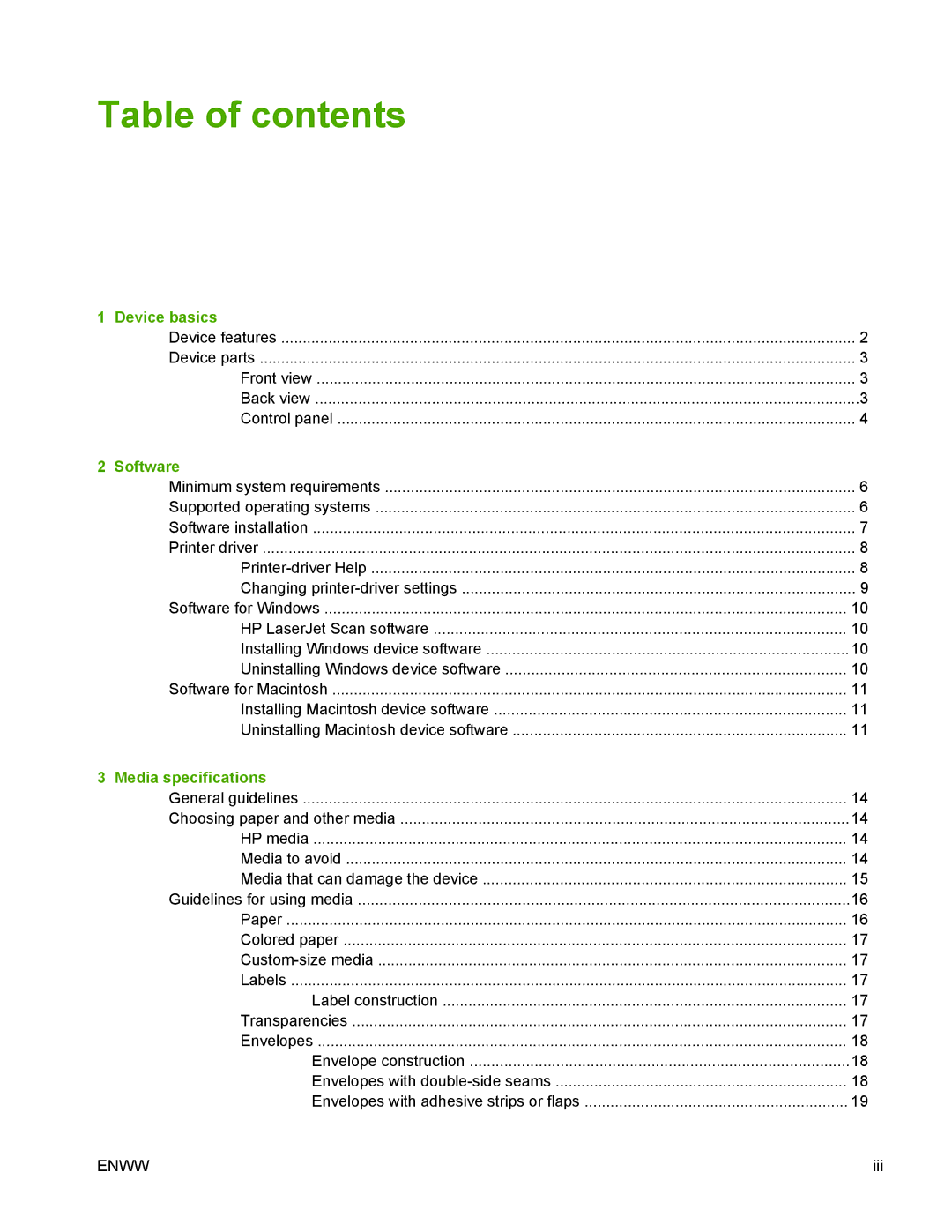
Table of contents
Copy
Using the device
Printing
Managing and maintaining the device
Problem solving
Scan
Appendix B Service and support
Appendix a Accessories and ordering information
Appendix D Regulatory information
Appendix C Device specifications
125
127
Viii
Device basics
Print
Device features
Back view
Device parts
Front view
Menu/Enter/OK button
Control panel
Software
Supported operating systems
Minimum system requirements
Windows requirements
Macintosh requirements
Software installation
Windows Macintosh
Printer driver
Printer-driver Help
Preferences
Changing printer-driver settings
Uninstalling Windows device software
Installing Windows device software
Software for Windows
HP LaserJet Scan software
Software for Macintosh
Installing Macintosh device software
Uninstalling Macintosh device software
Enww
Media specifications
Choosing paper and other media
General guidelines
HP media
Media to avoid
Media that can damage the device
Paper
Guidelines for using media
Symptom Problem with paper
Custom-size media
Colored paper
Labels
Transparencies
Envelopes with double-side seams
Envelopes
Envelope construction
Envelopes with adhesive strips or flaps
Card stock and heavy media
Envelope storage
Card stock construction
Letterhead and preprinted forms
Media Dimensions1 Weight Capacity2
Supported media weights and sizes
2Tray 1 specifications
Printing and storage environment
Enww
Using the device
Loading documents to copy or scan
Loading media
Loading input trays
Priority input tray
Main input tray tray
Controlling print jobs
Print-settings priorities
Selecting a source
Selecting a type or size
Changing the default media size and type
Using the device control panel
To change the default media size
Changing the control-panel display language
To change the default media type
Printing
Creating and using quick sets
Using features in the Windows printer driver
To create a quick set
To use quick sets
Resizing documents
Creating and using watermarks
To use an existing watermark
To reduce or enlarge a document
Using different paper and printing covers
Setting a custom paper size from the printer driver
Printing a blank first page or last
Printing multiple pages on one sheet of paper
On the Finishing tab, select Print on Both Sides Manually
Printing on both sides
Enww
Creating and using presets
Using features in the Macintosh printer driver
To create a preset
To use presets
Printing multiple pages on one sheet of paper Macintosh
Printing a cover page Macintosh
Manual Duplex area, select Print on Both Sides Manually
Printing on both sides Macintosh
Enww
Printing on special media
Using archive print
Canceling a print job
Copy
Starting a copy job
Canceling a copy job
To adjust the default copy quality
To adjust the copy quality for the current job
To adjust the default lighter/darker setting
Adjusting the lighter/darker contrast setting
To adjust the lighter/darker setting for the current job
Reduction/enlargement settings
Adjusting the copy size
Reducing or enlarging copies
To reduce or enlarge copies for the current job
Copying multiple pages on one sheet of paper
To adjust the default copy size
To change the number of copies for the current job
To change the default number of copies
Changing the number of copies
Media-type settings
Media-size settings
To change the default media-size setting
Copying onto media of different types and sizes
To change the default media-type setting type
Copying a two-sided original to a two-sided document
Copying two-sided documents
Copying a two-sided original to a one-sided document
Copying two-sided documents
To copy a book
Copying photos and books
To copy a photo
Viewing copy settings
Enww
Scan
Understanding scanning methods
Canceling a scan job
Scanning by using HP LaserJet Scan Windows
Using TWAIN-compliant and WIA-compliant software
Scanning by using other software
Scanning from a TWAIN-enabled program
To scan from a TWAIN-enabled program
To scan a book
Scanning a photo or a book
To scan a photo
Readiris
Scanning by using optical character recognition OCR software
Scanner resolution and color
Color
Resolution and color guidelines
Resolution
Managing and maintaining the device
Name Description Instructions
Information pages
Checking supplies status Storing supplies
Managing supplies
Replacing and recycling supplies
HP policy on non-HP supplies
Enww
To clean the exterior
Cleaning the device
To clean the scanner glass
To clean the lid backing
To clean the paper path
Changing the print cartridge
Enww
Problem solving
Step Verification step Possible problems Solutions Number
Problem-solving checklist
Does the device print from the computer?
Step Verification step Possible problems
Tips to avoid jams
Clearing jams
Causes of jams
Where to look for jams
Input trays
Enww
Print-cartridge area
Output bin
Enww
Alert and warning messages
Control-panel messages
Alert and warning message tables
Control panel message Description Recommended action
Critical error message tables
Critical error messages
Scanner Error Turn off then on
Improving print quality
Print problems
Print quality problems
General print-quality issues
Print-quality checklist
Problem Cause
Solution
Paper path
Problem Cause Solution
Media might not meet HP specifications
Problem
Reducing paper curl
Print-media guidelines
Media-handling problems