Users guide
Hewlett-Packard Company notices
Acknowledgements
Contents
Ethernet problems
137
Welcome
Special features
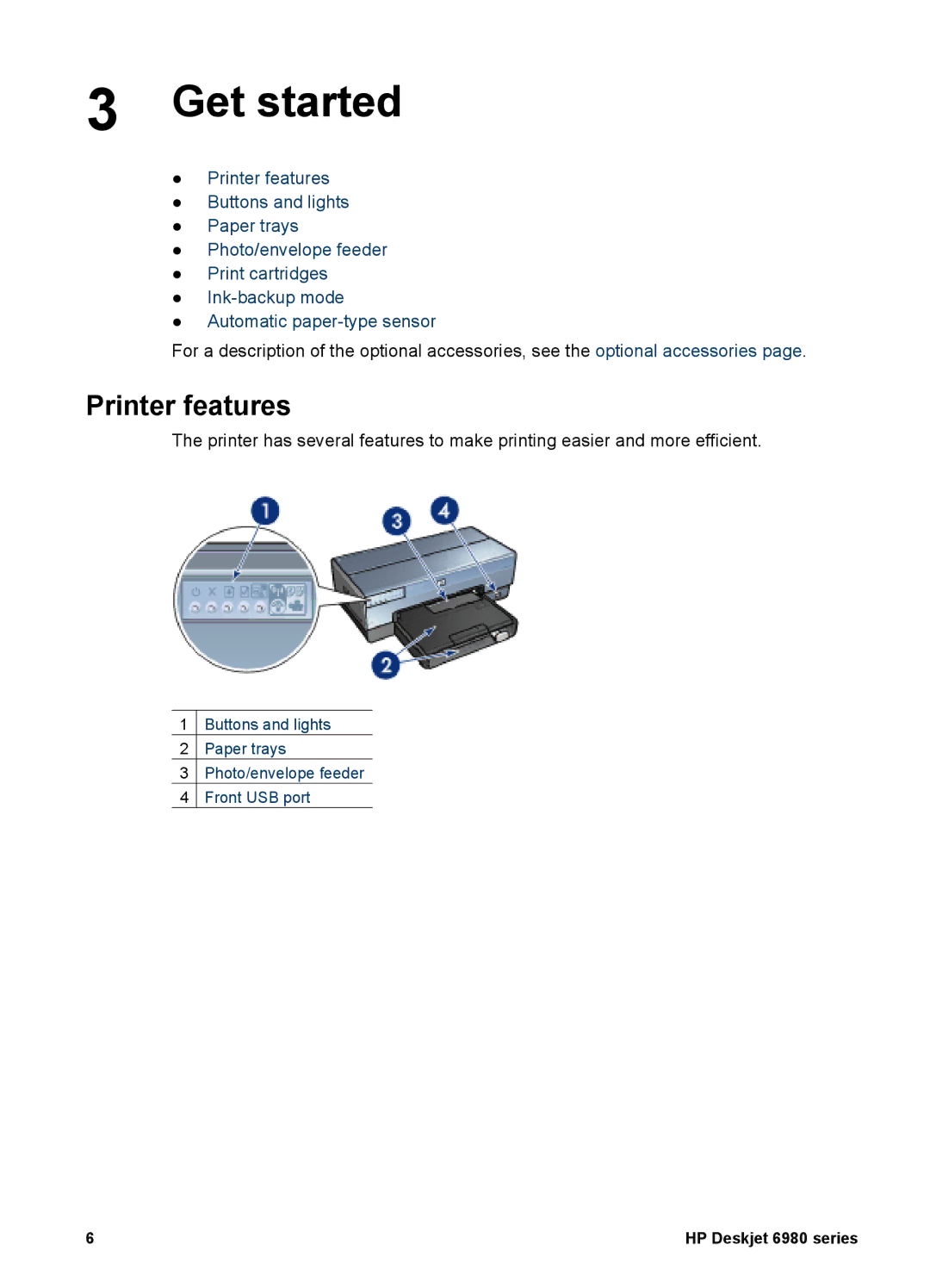
Printer features
Get started
Optional accessories
Power button and light
Buttons and lights
Print Cancel button
Quiet mode button
Resume button
Print Cartridge Status lights
Tray
Paper trays
PictBridge lights
Out tray
Printed pages are deposited in the Out tray
Photo/envelope feeder
Envelopes
Photos
Postcards
Replace print cartridges
Print cartridges
Use print cartridges
Ink-backup mode
Ink-backup mode output
Installed print cartridge
Exit ink-backup mode
Automatic paper-type sensor
To change a USB connection to a wireless connection
Connect to the printer
Wireless networking
Wireless networking basics
Wi-Fi 802.11g and 802.11b
To change a USB connection to an Ethernet connection
Wireless network examples
Adapters and access points
Access points
Infrastructure mode
What you need for a wireless infrastructure network
Ad hoc mode
Communication modes
Switch between 802.11b and 802.11g
Wireless network settings
Wireless profiles
Wireless security
Wireless network examples
Printing
Ad hoc networks
Infrastructure networks
Example
Wireless profiles
Mixed wired and wireless networks
Wireless network location
Network name Ssid
Profile Atwork
Athome
Laptop is reconfigured for network1
Printer is configured for network1
Laptop is configured for network2
Add security to the network
Wireless security
Ad hoc networks wireless direct-connect
Authentication and encryption
Authentication Definition
Types of authentication
Authentication type
Types of encryption
Encryption type
Wi-Fi Protected Access WPA
Wired equivalent privacy WEP
WEP is a network feature
WEP keys
To add WEP encryption
Open system
SecureEasySetup button
Configure the printer for an open system
Wireless Status light
State of the Wireless Status light Printer status
Wireless radio
Report Page button
Network light
Status of the icon Status of the printer network connection
How the wireless radio works
Wireless Status light
Disable and enable the wireless radio
Disable the wireless radio
Print an HP Report
HP Report
Turn radio off
Select the language
Understand the HP Report
General information
Meaning
Wireless
DNS Server
Embedded Web server EWS
Miscellaneous
Configure Bluetooth settings on a network printer
Open the embedded Web server
Reset the printer to the factory default settings
Parameter
Default setting
Networking glossary
Option
Numbers
Users guide
Chapter
Users guide
Wired Ethernet networking
Hardware Hubs, switches, and routers
Ethernet basics
Cables
Network communication
What you need for a wired network
IP address
Internet connections
Rendezvous
Ethernet network examples
DSL or cable Internet connection without a gateway
Ethernet network without an Internet connection
Install the printer on an Ethernet network
Connect the printer to an Ethernet network
State of the Link Task Light Go to step
Install the printer software
Previous installations
Software installation
Ethernet lights
Link light
State of the Link light State of the printer
Bluetooth wireless printing
State of the Activity State of the printer light
Configure Bluetooth settings
If the Bluetooth device requires the address of the printer
If the Bluetooth device displays the name of the printer
Click Bluetooth Settings
If your printer is connected to a network
Option Description
Print photos
Print borderless photos
Guidelines
Prepare to print
Quality Best or Maximum dpi
Print
Source Upper tray
Print photos with a border
HP Real Life technologies
Open HP Real Life technologies
Install the photo print cartridge
Photo print cartridge
Maximum dpi
Color options
Advanced color management
Gray photo print cartridge
Print black-and-white photos
Store and handle photo paper
Save money when printing photos
Handling
Print photos from a digital
Camera
Use a PictBridge camera
PictBridge printing
Connection light Error light
Display
Use a Bluetooth camera phone
Print photos from a Bluetooth camera
Print other documents
Mail
Letters
Documents
Envelopes
Quality Normal or Best
Brochures
Print borderless brochures
Greeting cards
Print brochures with borders
Postcards
Transparencies
Quality Normal, Best, or Maximum dpi
Labels
Paper Size A4 or US Letter
Index cards and other small media
Source Upper tray Paper Type Automatic or Plain paper
Iron-on transfers
Banners
CD/DVD tattoos
Paper Type HP CD/DVD Tattoo Source Upper tray
Printing tips
General everyday printing
Presentation printing
Select a print quality
Set the page order
Print collated copies
Print multiple pages on a single sheet of paper
Select the Copies and Pages pane
Select a paper type
Select a paper source
Use the automatic paper-type sensor
Select a specific paper type
Automatic two-sided printing
Resize a document
Print settings
Setup dialog box
Printer software
Print dialog box
Set a default printer
Manage the printer Mac OS X 10.3 and later
Manage the printer Mac OS X
Add a printer
View and change the status of a print job Mac OS X
Click Add Printer
Users guide
Maintenance
Install print cartridges
Print cartridge combinations
Selection numbers
Ink-backup mode
Installation instructions
Remove plastic tape
Align the print cartridges
Set the auto-off feature
Select Power Management
Automatically clean print cartridges
Calibrate color
Print a test
View estimated ink levels
Manually clean print cartridges
Gather cleaning supplies
Maintain the printer body
Remove ink from your skin and clothing
Prepare to clean
Cleaning instructions
Maintain print cartridges
Store print cartridges
HP Printer Utility
Open the HP Printer Utility
HP Printer Utility panes
Mac OS X 10.3 and later
Mac OS X
Troubleshooting
Ethernet problems
Printer does not print
State of the Link light Task
State of the Activity light
Cannot open the printers embedded web server EWS
State of the Wireless Status light Task
Wireless communication problems
Check the Wireless Status light
Wireless Status light is on
State of the Wireless Status light
Printer has the wrong network settings
Printer communication mode
Problem
Solution
Wireless access point filters MAC addresses
WPA
Printer does not print
Verify the following
Check the printer lights
Check the printer cable connection
If the printer still does not print
Paper jam
Check the print queue
Paper problems
Accessories?
Printer does not feed paper
Printer ejects paper
Printer prints on multiple sheets at once
Paper mismatch
Printer is stalled
Print cartridge problems
Incorrect print cartridge
Print cartridge is in the wrong slot message
Print cartridge problem message
Printing in ink-backup mode message
Check the printer settings
Photos do not print correctly
Reload the paper tray
Colors are tinted or incorrect
Part of the photo is faded
Part of the photo is faded
Fading occurs on the edges of a photo
Fading occurs near the edges of a photo
PictBridge lights are flashing State of the lights
PictBridge problems
Images in a connected digital camera do not print
Bluetooth printing problems
Banners do not print correctly
Print quality is poor
Too much or too little ink appears on
Print is faded
Blank pages print
Too much or too little ink appears on
Problems with borderless documents
Document is misprinted
Streaks appear in a light portion of a photo
Image is printed at an angle
Fading occurs on the edges of a printout
Ink smears
Photo has unwanted border
Photo has an unwanted border
For most paper types
Error messages
Problem with the print cartridge message
For photo paper with a tear-off tab
Out of paper message
Printer lights are on or flashing
Out-of-paper message
If the status light is on and flashing
Print Cartridge Status light is on or flashing
If the status light is on and not flashing
Document prints slowly
If you continue to have problems
HP support process
Accessories
Automatic Two-Sided Printing Accessory duplexer
Install the duplexer
Automatic two-sided printing
Automatic two-sided printing problems
Option for two-sided printing cannot be selected
Automatic Two-Sided Printing Accessory specifications
Install the 250-Sheet Plain Paper Tray Accessory
Sheet Plain Paper Tray
Set the paper size
Load the 250-Sheet Plain Paper Tray Accessory
Two parts
Users guide 135
Use the 250-Sheet Plain Paper Tray Accessory
Load paper
Auto Two-Sided Print Accessory with Small Paper Tray
Sheet Plain Paper Tray Accessory specifications
Dimensions
Weight
Print two-sided documents automatically
Print postcards
Slide the paper-width guide to the left
Source Rear tray
Print small photos
Configure the printer to feed paper from the accessory
Configure the printer to feed paper from the In tray
Print envelopes
Users guide 143
Source Rear tray Paper Type Plain paper
Paper size is not supported by the duplexer
Duplexing specifications
Small paper tray specifications
Users guide 147
Accessories
Supplies
Paper
USB cables