Setting Up the LCD Console
This section provides instructions for setting up the LCD console for local or remote management.
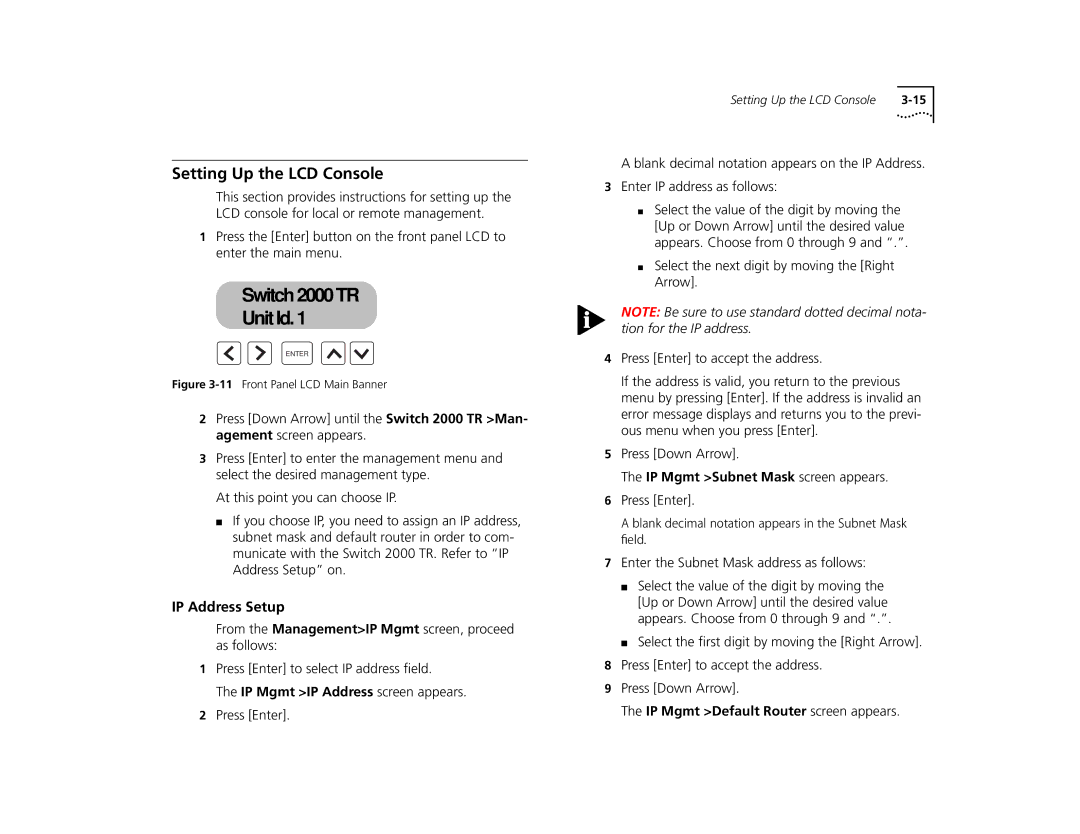
1Press the [Enter] button on the front panel LCD to enter the main menu.
Switch 2000 TR
Switch 2000 TR
Unit Id. 1
Unit Id: 1
ENTER
Figure 3-11 Front Panel LCD Main Banner
2Press [Down Arrow] until the Switch 2000 TR >Man- agement screen appears.
3Press [Enter] to enter the management menu and select the desired management type.
At this point you can choose IP.
■If you choose IP, you need to assign an IP address, subnet mask and default router in order to com- municate with the Switch 2000 TR. Refer to “IP Address Setup” on.
IP Address Setup
From the Management>IP Mgmt screen, proceed as follows:
1Press [Enter] to select IP address field.
The IP Mgmt >IP Address screen appears.
2Press [Enter].
Setting Up the LCD Console |
A blank decimal notation appears on the IP Address.
3Enter IP address as follows:
■Select the value of the digit by moving the [Up or Down Arrow] until the desired value appears. Choose from 0 through 9 and “.”.
■Select the next digit by moving the [Right Arrow].
NOTE: Be sure to use standard dotted decimal nota- tion for the IP address.
4Press [Enter] to accept the address.
If the address is valid, you return to the previous menu by pressing [Enter]. If the address is invalid an error message displays and returns you to the previ- ous menu when you press [Enter].
5Press [Down Arrow].
The IP Mgmt >Subnet Mask screen appears.
6Press [Enter].
A blank decimal notation appears in the Subnet Mask field.
7Enter the Subnet Mask address as follows:
■Select the value of the digit by moving the [Up or Down Arrow] until the desired value appears. Choose from 0 through 9 and “.”.
■Select the first digit by moving the [Right Arrow].
8Press [Enter] to accept the address.
9Press [Down Arrow].