Norton Ghost User’s Guide
Copyright Notice
Norton Ghost User’s Guide
Trademarks
Symantec License and Warranty
S. Government Restricted Rights
Contents
Chapter Backing up, restoring, and cloning from Norton Ghost
Chapter Image file options
Chapter Backing up, restoring, and cloning from DOS
Chapter Managing partitions using GDisk
Appendix USB and DirectParallel Cables
Appendix Diagnostics
Contents
About Norton Ghost
Introducing Norton Ghost
What’s new in Norton Ghost
How Norton Ghost works
Virtual Partition
Hardware restrictions
Preparing for an emergency
Norton Ghost components
Norton Ghost wizards
See Restoring your computer from an image file on
See Restoring from an image file on
Backup Wizard
Clone Wizard
Run Ghost Interactively Wizard
Norton Ghost executable
Ghost Boot Wizard
Ghost Explorer
GDisk
Ghost Walker
Installing Norton Ghost
Supported backup media
Minimum system requirements
Ghost.exe
CD and DVD writing
Installing Norton Ghost
Disaster recovery requirements
See Cloning with Linux on
See Preparing for an emergency on
To install Norton Ghost from Norton SystemWorks
Installing Norton Ghost
To install Norton Ghost from the Norton Ghost CD
To start the installation from the Norton Ghost CD
If the opening screen does not appear
To register Norton Ghost
Uninstalling Norton Ghost
To update Norton Ghost using LiveUpdate
To uninstall Norton Ghost
Updating Norton Ghost
Uninstalling Norton Ghost
Backing up, restoring, and cloning from Norton Ghost
When to use Norton Ghost in Windows
Starting Norton Ghost in Windows
Starting Norton Ghost from the tray icon
To start Norton Ghost in Windows
To start Norton Ghost from the tray icon
Creating a backup image file
To back up a hard disk or partition
See Setting Norton Ghost options and defaults on
See Creating a recovery boot disk on
Restoring your computer from an image file
See Identifying a hard disk on
To restore a disk or partition
See Viewing image files on
Cloning a hard disk or partition
To create a clone task
See Installing USB peer-to-peer drivers on
To run Ghost.exe peer-to-peer using USB
Launching Ghost.exe peer-to-peer
Click USB peer-to-peer
To run Ghost.exe peer-to-peer using TCP
Click TCP peer-to-peer
To run Ghost.exe peer-to-peer using LPT
See Setting LPT peer-to-peer drivers on
Click LPT peer-to-peer
Identifying a hard disk
To identify a disk
Identifying a hard disk
Setting options and defaults
Setting Norton Ghost options and defaults
Adding command-line switches to a task
Setting the options for a mapped network drive
To add command-line switches to a task
Assigning a drive letter to a CD/DVD drive
Setting display options
Click Map network drive
See Selecting a template on
To set the options for a mapped network drive
Setting the DOS version
To install MS-DOS
To uninstall MS-DOS
See Providing MS-DOS on
HIMEM.SYS WFWSYS.CFG
Setting the image integrity check default
Setting a compression level
To install the Microsoft DOS Client files
See Checking the integrity of an image file on
Assigning a password to an image file
To assign a password
Adding free space to the Virtual Partition
To set the compression level
Installing Scsi drivers
See Installing extra drivers on
To install Scsi drivers
To specify additional free space in the Virtual Partition
Setting TCP/IP drivers
Setting external storage device drivers
To install external device drivers
Setting LPT peer-to-peer drivers
To install TCP/IP drivers
To install LPT peer-to-peer drivers
Installing extra drivers
To install extra drivers
Running your computer from the Virtual Partition
Installing USB peer-to-peer drivers
To select USB peer-to-peer drivers
Checking the integrity of an image file
Restarting your computer from the Virtual Partition
To create the Virtual Partition from a folder
To restart your computer in Windows
See Adding command-line switches to a task on
Viewing the task log
Starting Ghost.exe
To check the integrity of an image file
What to do if a task fails
To start Ghost.exe
Image file options
About Norton Ghost image files
See Command-line switches on
Image files and compression
Image files and volume spanning
Image files and CRC32
Performance expectations on a network
Standard image files
Size-limited image files
Limitations on the image file size
Spanned image files
Spanning across multiple volumes and limiting span sizes
Restoring from a spanned image
See Standard boot disks on
See Adding switches to your Ghost operation on
Image files and tape drives
GoBack and Norton Ghost
See Creating a backup image file on
GoBack and Ghost.exe
See Reinitializing the Master Boot Record on
Dynamic disks in Windows 2000/XP
Hibernation and swap files
Spart.par Swapper.dat Toshiber.dat Virtpart.dat Win386.swp
Creating boot disks with the Ghost Boot Wizard
Introducing the Norton Ghost Boot Wizard
What is a Ghost boot disk
When to create a Ghost boot disk
How to use a Ghost boot disk
Creating a recovery boot disk
Files included on a Ghost boot disk
When to include MS-DOS on a boot disk
To test your recovery boot disk or CD/DVD
Opening the Ghost Boot Wizard
To open the Ghost Boot Wizard
Creating boot disks and boot images
See Boot disks with network support
Standard boot disks
See Image files and CD/DVD writers on
Creating boot disks and boot images
Creating boot disks and boot images
Boot disks with network support
To create a boot disk with network support
Creating boot disks and boot images
Boot disks with CD-ROM and DVD support
To create a boot disk with CD-ROM and DVD support
See Installing MS-DOS Client files on
Boot disks with drive mapping network support
To create a boot disk that supports mapping network drives
Creating boot disks and boot images
Selecting a template
Click Device Manager Expand Network Adapter
See Adding network drivers to the Ghost Boot Wizard on
Multicard templates and the boot disk
To create a multicard template
Adding network drivers to the Ghost Boot Wizard
Adding packet drivers to the Ghost Boot Wizard
To begin adding a network driver to the Ghost Boot Wizard
To add a packet driver to the Ghost Boot Wizard
Adding NDIS2 drivers to the Ghost Boot Wizard
To add an NDIS2 driver to the Ghost Boot Wizard
Customizing the template
Adding command-line parameters to a boot package
To modify a template
Providing MS-DOS
Click Start Program Files Windows Explorer
Check Copy System Files
Clone Parameters Description
To install MS-DOS on your computer
To uninstall MS-DOS from your computer
Backing up, restoring, and cloning from DOS
An overview of using Ghost.exe
To use Norton Ghost
Starting the Norton Ghost executable
See Creating boot disks and boot images on
Navigating without a mouse
Marking your disks
\progra~1\symantec \Norton~1\ghost.exe
Establishing a peer-to-peer connection with Ghost.exe
Action Master Slave
To connect two computers peer-to-peer
Backing up a hard disk to an image file
Local Click Local Disk To Image
To back up a disk to an image file
See Image files and volume spanning on
Backing up a partition to an image file
See Verifying image integrity on
Local Click Local Partition To Image
See Image files and compression on
Following is an example of command line use
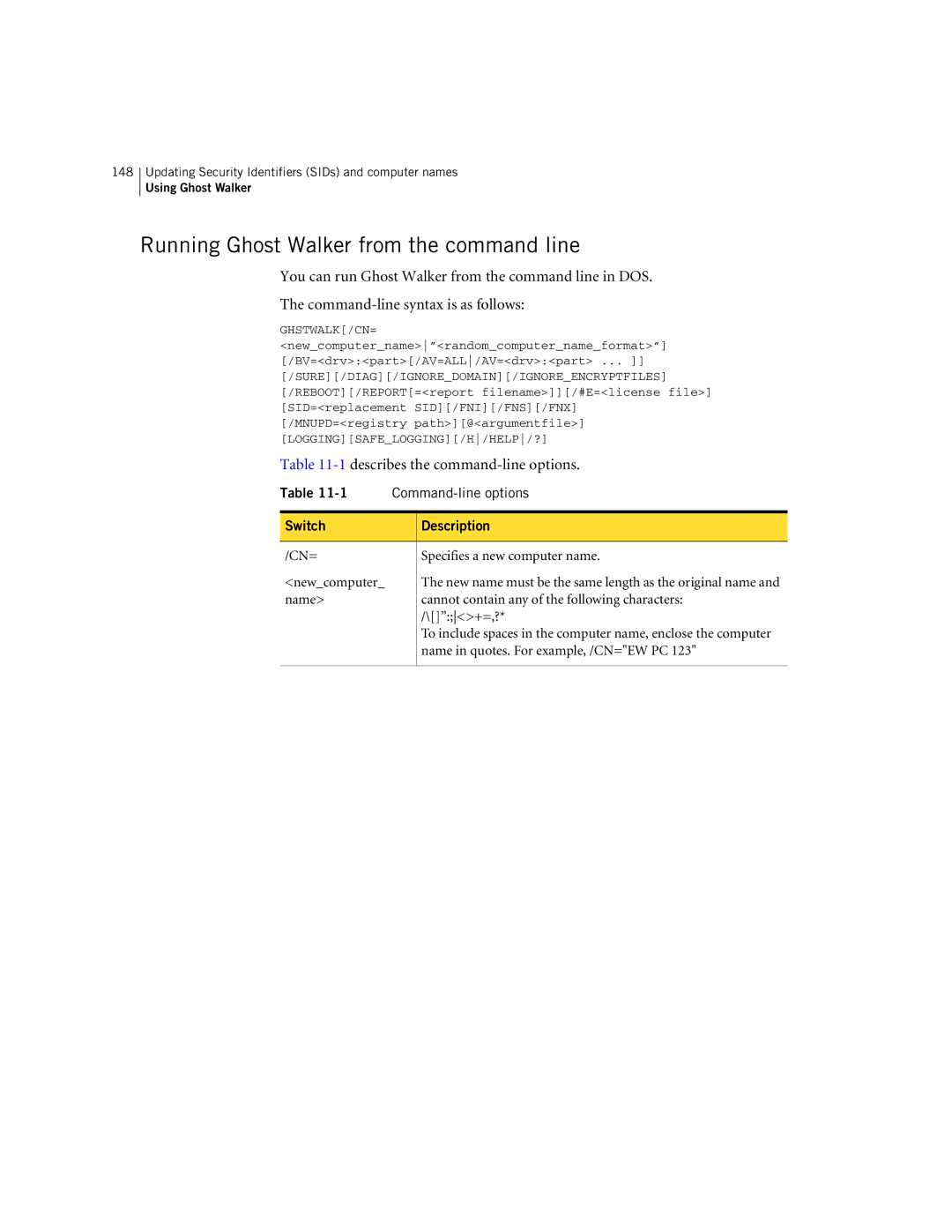
Using Ghost Walker
Command-line switches
Using Norton Ghost with switches
Command-line switches
To list Norton Ghost command-line switches
Ghost.exe -h Ghost.exe -?
See Clone switch usage on
With -cns
See -CRC32 switch usage on
Dl=number
Specified
Require forensic images
Type Based On Value
Piii ID
To reinstall Lilo
When automating Norton Ghost in a batch command file
CRC32 vexcept option
See Setting a destination size for the clone switch on
See Image files and compression on
Clone switch usage
Defining the type of clone command
Switch Action
Table A-1
Mode Source Destination
Setting a source for the clone switch
Table A-2
Switch Source Explanation
Table A-3
Setting a destination for the clone switch
Setting a destination size for the clone switch
Switch Destination Explanation
Table A-4
Switch Function
Examples of clone switch usage
Table A-5
Table A-6
CRC32 switch usage
Ntfs
Examples of -CRC32 usage
Table A-7
Parameter Explanation
Table A-8
Files not checked with CRC
Ghost.exe and the Virtual Partition
\WINDOWS\TEMPOR~1\CACHE4\
Ghost.exe and the Virtual Partition
Transfer methods and hardware setup
Peer-to-peer connections
Transfer and hardware requirements
See USB and DirectParallel Cables on
Removable media
Scsi tape drives
CD/DVD usage
Internal drives
Third-party devices
USB and DirectParallel Cables
Parallel Technologies cables Other USB cables
Parallel Technologies cables
Other USB cables
Wattcp.cfg network configuration file
Wattcp.cfg configuration file Wattcp.cfg key words
Wattcp.cfg configuration file
Wattcp.cfg key words
Table D-1
Keyword Description
Wattcp.cfg key words
Wattcp.cfg key words
Cloning with Linux
Boot configuration
Supported configurations
Position of disk
Norton Ghost utility support
Norton Ghost utility support
Troubleshooting
Ghost.exe error messages
See Service and support solutions on
Error code Description
Table F-1
Problems running Norton Ghost
Card not found/Card not installed
Creating an image on an Ntfs partition
Cannot start from drive a
To change your computer’s settings
Windows NT blue screen
Missing hibernation file
Computer fails to restart
Installing and uninstalling Norton Ghost
Cancelling a Ghost.exe operation
Getting out of the Virtual Partition
Connecting using USB peer-to-peer
See Installing from the command line on
Writing to a recordable CD or DVD
Supported CD-R/RW and DVD drives
Inaccessible CD-ROM drive
IDE CD-ROM drives
CD-R/RW disc
Using the correct boot disk
Outdated computer Bios
Loading CD-R/RW drivers
Loading Ghost.exe from the floppy disk drive
Outdated CD-R/RW drive Bios
Using PC-DOS or MS-DOS
Using third-party software to write to the CD-R/RW disc
To write an image to CD using third-party software
Diagnostics
Hard drive detection and diagnostic information
Abort error file Ghosterr.txt
Creating a full diagnostic statistics dump summary
View Log
Testing TCP/IP functionality
\ ping LocalHost
Testing TCP/IP functionality
Installing Norton Ghost from the command line
Choosing an interface type for installation
Choosing an installation mode
Property Default value Description
Installing from the command line
Table H-1
Uninstalling from the command line
To uninstall Norton Ghost from the command line
Msiexec /x path to msi package \Norton Ghost.msi /q or /qb
Table H-2
Technical support
Service and support solutions
Support for old and dis versions
Customer service
Worldwide service and support
Service and support offices
Mexico
Subscription policy
Other Latin America
Glossary
Partition
Index
Index
Index
LPT
USB
Index
CD Replacement Form
Norton Ghost