Click the [Apply] button.
5
Start up PageScope Light.
1
❍ Refer to “Using PageScope Light” on page 3-25.
2 Log into PageScope Light in Administrator mode.
3 Click [FTP Configuration] in the sub-menu that appeared after clicking [FTP Server] in the menu on the [Network] tab.
4 Specify the necessary settings for the parameters in the page that appeared.
3
Preparation
Specifying a proxy
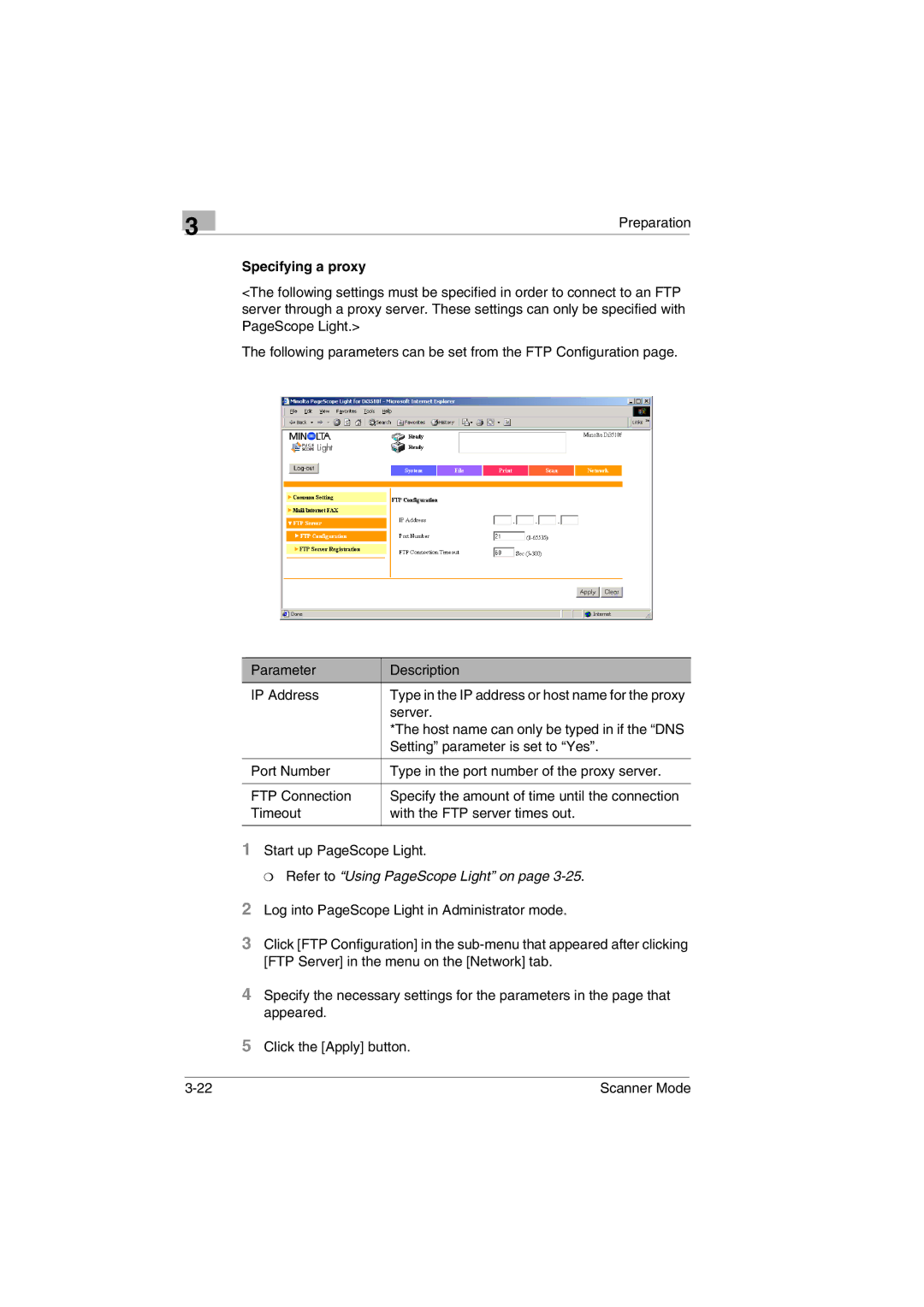
<The following settings must be specified in order to connect to an FTP server through a proxy server. These settings can only be specified with PageScope Light.>
The following parameters can be set from the FTP Configuration page.
Parameter | Description |
IP Address | Type in the IP address or host name for the proxy |
| server. |
| *The host name can only be typed in if the “DNS |
| Setting” parameter is set to “Yes”. |
|
|
Port Number | Type in the port number of the proxy server. |
|
|
FTP Connection | Specify the amount of time until the connection |
Timeout | with the FTP server times out. |
|
|
Scanner Mode |