Chapter 4 Setting Up the Cisco Unified IP Color Key Expansion Module
Configuring the Key Expansion Module in Cisco Unified Communications Manager Administration
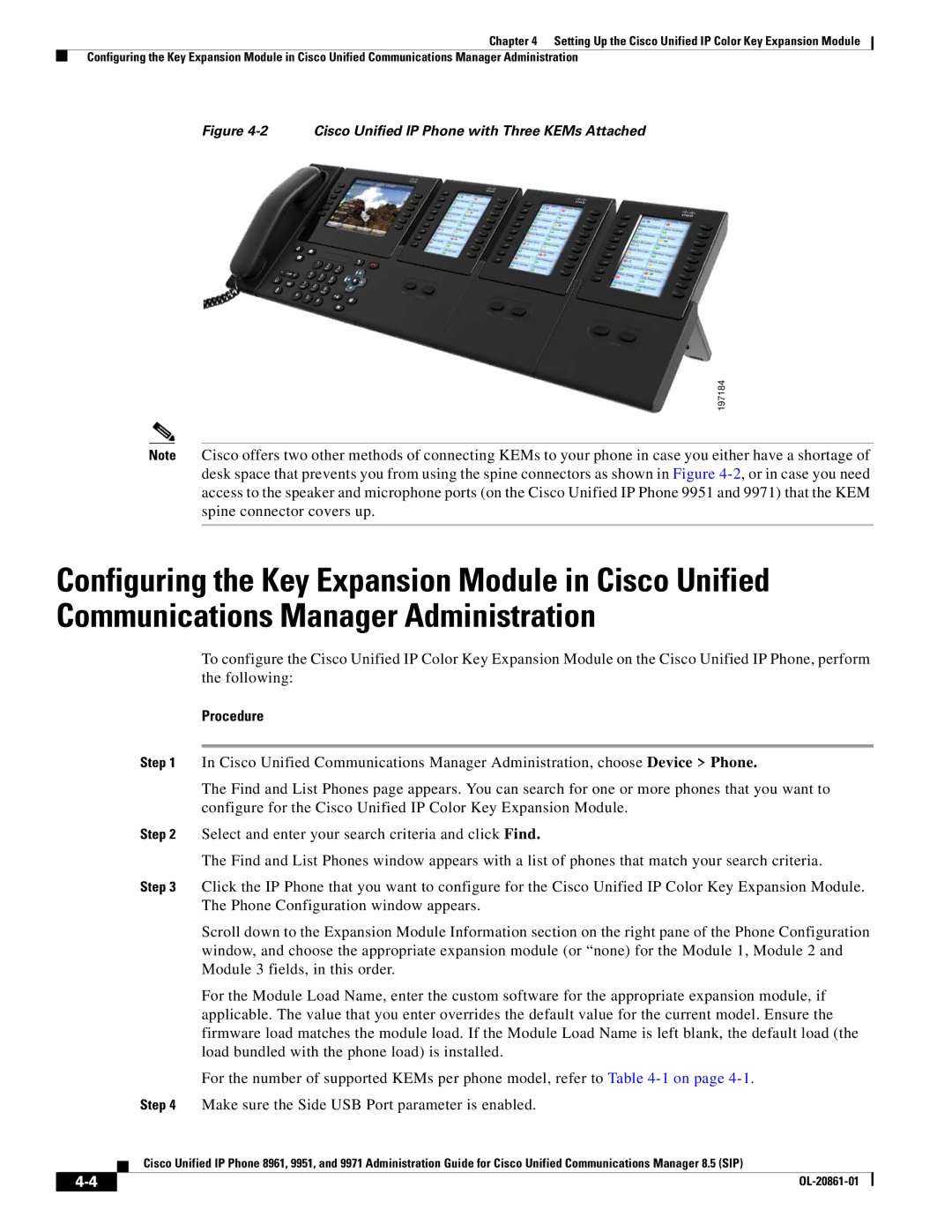
Figure 4-2 Cisco Unified IP Phone with Three KEMs Attached
197184
Note Cisco offers two other methods of connecting KEMs to your phone in case you either have a shortage of desk space that prevents you from using the spine connectors as shown in Figure
Configuring the Key Expansion Module in Cisco Unified Communications Manager Administration
To configure the Cisco Unified IP Color Key Expansion Module on the Cisco Unified IP Phone, perform the following:
Procedure
Step 1 In Cisco Unified Communications Manager Administration, choose Device > Phone.
The Find and List Phones page appears. You can search for one or more phones that you want to configure for the Cisco Unified IP Color Key Expansion Module.
Step 2 Select and enter your search criteria and click Find.
The Find and List Phones window appears with a list of phones that match your search criteria.
Step 3 Click the IP Phone that you want to configure for the Cisco Unified IP Color Key Expansion Module. The Phone Configuration window appears.
Scroll down to the Expansion Module Information section on the right pane of the Phone Configuration window, and choose the appropriate expansion module (or “none) for the Module 1, Module 2 and Module 3 fields, in this order.
For the Module Load Name, enter the custom software for the appropriate expansion module, if applicable. The value that you enter overrides the default value for the current model. Ensure the firmware load matches the module load. If the Module Load Name is left blank, the default load (the load bundled with the phone load) is installed.
For the number of supported KEMs per phone model, refer to Table
Cisco Unified IP Phone 8961, 9951, and 9971 Administration Guide for Cisco Unified Communications Manager 8.5 (SIP)
| ||
|