5. After completing your password setup, press Esc. The message Do You Want To Copy User File Back On The Installation Disk? displays.
6.Highlight Yes and press Enter. If you choose No, your new passwords are not installed on the disk.
7.A “Copy to Drive” dialog box displays. The box defaults to drive A:. If you do not
want drive A:, type the drive letter to which you wish to copy the installation information. Press Enter. A dialog box displays asking you to insert the DKBackup Installation Disk into the appropriate disk drive.
8.Insert the DKBackup Installation Disk into the
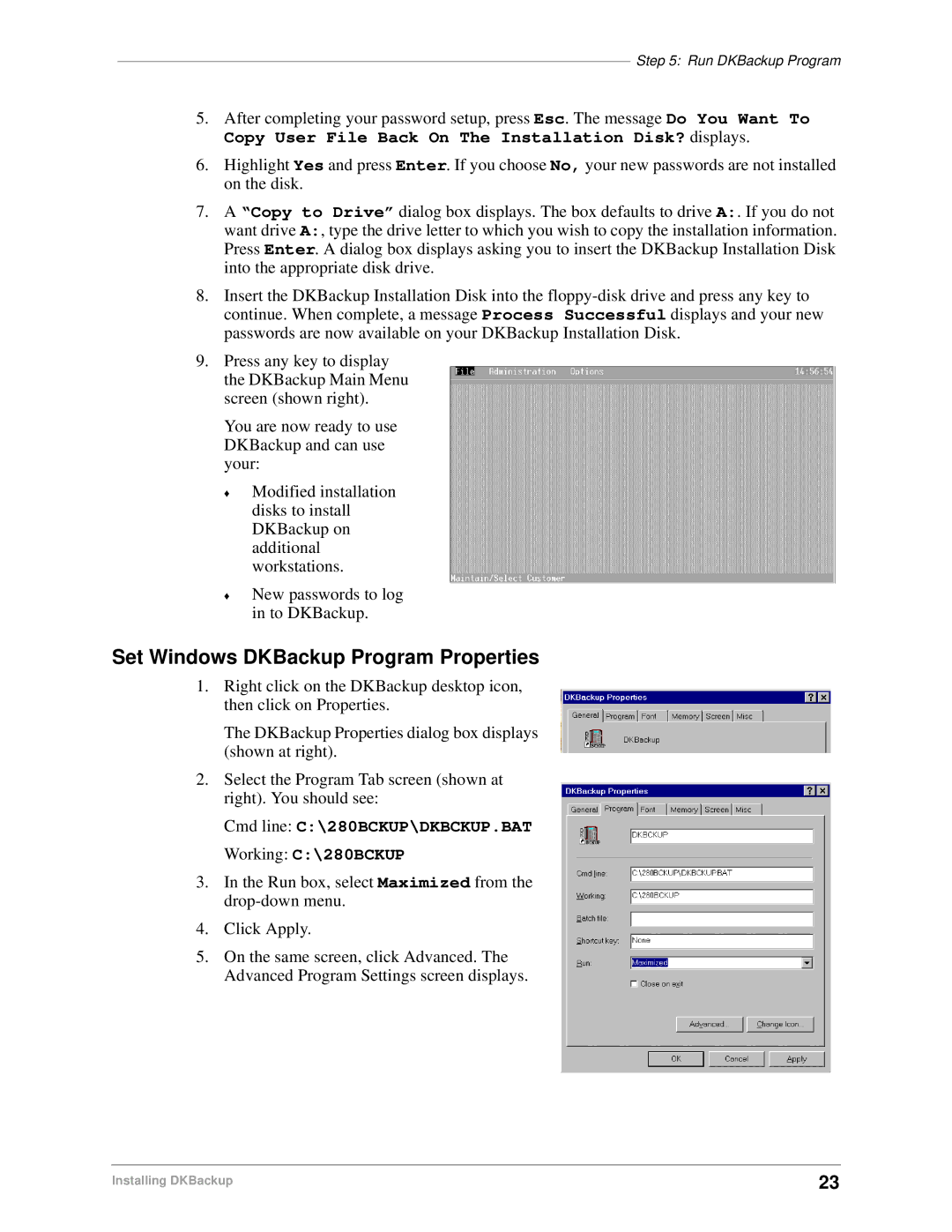
9.Press any key to display the DKBackup Main Menu screen (shown right).
You are now ready to use DKBackup and can use your:
♦Modified installation disks to install DKBackup on additional workstations.
♦New passwords to log in to DKBackup.
Set Windows DKBackup Program Properties
1.Right click on the DKBackup desktop icon, then click on Properties.
The DKBackup Properties dialog box displays (shown at right).
2.Select the Program Tab screen (shown at right). You should see:
Cmd line: C:\280BCKUP\DKBCKUP.BAT
Working: C:\280BCKUP
3.In the Run box, select Maximized from the
4.Click Apply.
5.On the same screen, click Advanced. The Advanced Program Settings screen displays.
Installing DKBackup | 23 |