Model
Safety Instructions
Table of Contents
106
Introduction
Precautions
Top panel
Names and Functions
Record track select keys Record Track 1
Access LED Access
Execute/Yes key EXECUTE/YES
Contrast adjustment knob
Setup key Setup
Clipboard In key Clipboard IN/ Preview
Scrub key Scrub
Auto Return/Auto Play mode on/off key
Edit key Edit
JOG dial JOG/ Shuttle
Rewind button Rewind
Vari Pitch key Vari PITCH/ P.EDIT
Shift key Shift
Fast forward button F FWD
Record button RECORD/ Auto Punch
Store key Store
Hold/ key Hold
Auto Punch Out key
Auto Return End key Auto RTN END/ Preview
Auto Return Start key
Auto Punch In key Auto Punch IN/ Preview
Scsi connector Scsi Connector D-SUB 25-pin
Data output jack Data OUT Connector Optical
Data input jack Data in Connector Optical
Midi OUT jack Midi OUT Connector DIN 5-pin
Side Panel
Display Section
Digital
Time base is ABS
Time base is MTC
Time base is BAR/BEAT/CLK
Action to take
Acc Error message
Load Err message
Unformat ! message
Time Base
Before Starting
Recording method and Remain indicator
Remain indicator
Recording method
You can name a program
Managing songs by Program Change function
Real tracks and Additional tracks
You can swap data between twenty-four mono tracks
Additional tracks in units of eight tracks
Input monitoring
When you set a track to recording mode
When you set a track to recording stand-by mode
Input monitoring and playback monitoring
About an audio file
Audio file and event
Hints
Formatting a Disk
Recording mode
Formatting a new disk
Formatting a current drive disk Scsi disk
Press the EXECUTE/YES key again
Re-formatting a formatted disk
Insert a formatted disk into the Scsi drive
Press the EXECUTE/YES key
Formatting a current drive disk 3.5-inch E-IDE hard disk
Formatting a backup disk Scsi disk
Formatting an unformatted disk for backup
Insert a new disk into the backup drive
Formatting a backup disk fixed disk
Re-formatting a formatted disk for backup
Insert a formatted disk into the backup drive
While holding down the HOLD/ key, press the Store key
Turn on the power to the VR800 and a connected Scsi drive
Handling Programs
Creating a new Program
To enter a title
Using a Program Change function
Deleting a Program
Press the Setup key while the VR800 is stopped
Editing a Program title
JOG dial to enter characters or numbers
After you enter the title, press the EXECUTE/YES key
Storing the edit points
What is Punch In/Out recording?
Punch In/Out Recording
Auto Punch In/Out
Music instrument Guitar
Recording level
Rehearsing Auto Punch In/Out recording
Press the Record button while holding down the Shift key
Set the track for Auto Punch In/Out to Ready
Press the Record button while holding down the Play button
When you finish recording, press the Stop button
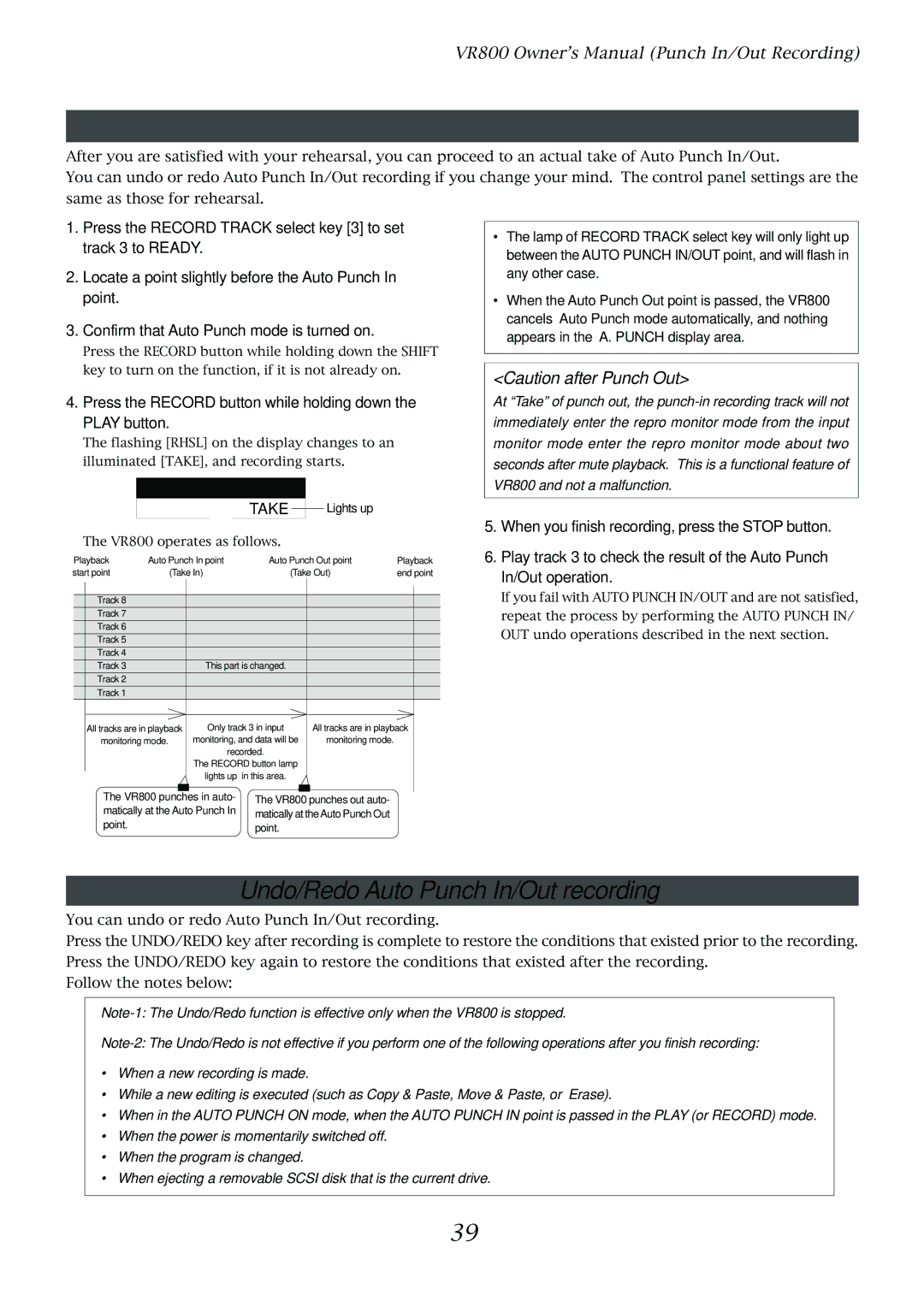
Auto Punch In/Out Take
Undo/Redo Auto Punch In/Out recording
Play the guitar accompanying the playback of tracks
Press the foot switch while holding down the Stop button
Manual Punch In/Out
Rehearsing Manual Punch In/Out recording
Manual Punch In/Out take
Cancelling Rehearsal mode
Undo/Redo Manual Punch In/Out recording
Music Instrument
Recording to a Metronome Sound
Creating a Tempo Map
Turning the Metronome function on
Quitting recording
Adjusting monitor/record level of the musical instrument
Checking the metronome sound
Starting recording
Digital recording from an external digital device
Connecting an external digital device
Assigning tracks and setting the digital-in clock
Digital Recording
Digital recording to an external device
Selecting a recording track
Starting and quitting recording
Selecting a playback program
Setting a digital output track
Memory key
Storing a Locate Point Edit Point
Press the desired memory key
Storing and editing the locate points to the memory keys
Storing in real-time
Press the Store key
Press the memory key that you pressed in again
Editing and storing locate data
Editing and storing data
Press the HOLD/ key while the VR800 is stopped
Storing and editing Locate key
Select the Locate number desired using the JOG dial
Next press the Locate key
Press the Store key. the Store key lamp lights up
Edit and re-store data that is already stored
Direct Locate
Locate Function
Auto Return
Auto Play
Start playback a little before the Auto RTN Start point
Auto Repeat
Cue & Review function using the Rewind and F FWD buttons
Cue & Review function using the Shuttle feature
Cue & Review Function
Press the Stop button to stop the digital scrubbing
Digital scrubbing using the Scrub function
Press the Scrub key while the VR800 is stopped
Turn the JOG dial to perform digital scrubbing
Previewing the fall of the sound fade out
Preview Function
Executing the Preview function
Previewing the rise of the sound fade
Press the Stop button or the EXIT/NO key
Trimming the sound while previewing
Move & Paste
Editing Tracks
Copy & Paste and Move & Paste
Copy & Paste
Key for which you wish to check the edit point
Executing Copy or Move
Checking the clipboard data
Paste start point
Turn the JOG dial to enter the number of repeats Repeat=
Executing Paste
Undo/Redo Paste
Select a destination track to paste data
Erase
Erasing a specified part of the data between ABS 0
Erasing data from a specified point to REC END
Executing Erase
Undo/Redo Erase
Storing the erase start and end points
Swapping mono track data between Real tracks, Addi
Track Exchange
Executing Track Exchange
Connecting external equipment Refer to connecting schematic
Midi sync function
Connect the VR800 Midi OUT to Midi in of the Midi sequencer
Confirming the Midi clock sync
Setup of VR800
Execution of recording
MTC sync/MIDI machine control system
Setup of external equipment
Connecting to external equipment
Confirming MTC sync/MMC
Offset mode For ABS
Connection to external equipment
External Midi equipment sync system by the slave mode
Confirming chase lock
Precautions at MTC related setups
Using a Scsi drive as the current drive
Saving and Loading Song Data
Outline of the save/load operation
Fostex D-5, Pioneer D-05
Save DAT or adat
Title of data to be saved to a backup Scsi disk
Saving/loading data using another Scsi drive
Insert an unformatted disk into the backup drive
Press the EXIT/NO key to exit Setup mode
Save PGM ? menu
Load PGM ? menu
Select a flashing SCSi id-6 and press EXECUTE/YES key
Saving/loading via a DAT or adat
DAT or adat connection and preparation
Saving song data via a DAT or adat
Use the JOG dial to select a Program to save
Use the JOG dial to select the desired tracks
Start recording on the DAT or adat
Progresses
Loading song data via a DAT or adat
Use the JOG dial to select a Program into which to load data
Start playing the DAT or adat
Saving and loading song data via a Scsi drive
If you do not wish to delete the existing data
If you wish to delete the existing data
Changing the Initial Settings Setup Mode
Following diagram shows the position of each menu
Selecting Setup mode
Setting a time signature Sign. Set ? menu
Storing a time signature
Select a Program for which to set a time signature
Clearing all time signature and tempo settings
Modifying or deleting stored time signatures
Changing the BAR at ABS 0 of the time base
Storing a tempo value
Setting a tempo Tempo Set ? menu
Checking the stored tempo setting
Select a Program to check the tempo setting for
Setting the Metronome function Click ? menu
Setting the Metronome function
Repeat steps 3-5 to store necessary tempo data
Turn the JOG dial to enter a desired preroll time value
Setting a preroll value Preroll ? menu
Setting a preroll time
Turn the JOG dial to select on or oFF
Setting Midi sync output signal Sync Out ? menu
Setting Midi sync signal
Turn the JOG dial to select the desired Midi sync signal
Turn the JOG dial to enter the desired frame rate
Setting an MTC frame rate Frame Rate ? menu
Setting an MTC offset value Mtc Offset ? menu
Setting an MTC frame rate
Setting an MTC offset
Setting Offset mode Ofset Mode ? menu
Use the JOG dial to select the desired Offset mode
Setting the Slave mode Slave Mode ? menu
Setting MTC Offset mode
Turning Slave mode on and off
Use the JOG dial to select the desired Slave type
Setting the Slave type Slave Type ? menu
Setting the Slave type
Use the JOG dial to turn Slave mode on and off
100
Setting the Record Protect function Rec Protect ? menu
Recording enabled/disabled
Use the JOG dial to enable or disable recording
Setting digital input tracks Digi. In ? menu
Setting digital input tracks
101
102
Setting digital output tracks Digi. Out ? menu
Setting a clock of digital
Setting digital output tracks
Setting BAR/BEAT resolution mode Resolu ? menu
Setting BAR/BEAT resolution mode
103
104
Setting the Midi device number Device ID ? menu
Setting the Midi device ID
Use the JOG dial to turn the mode on or off
Checking the number of track events NOs Event ? menu
Checking the number of track events
105
Midi Implementation Chart
106
Transmitted Recognized Remarks
Command List Movement Recorder
MMC Response/Information Field List Command
107
108
Fostex Midi System Exclusive Message Format for VR800
109
Status Request
110
Example 2 Locate memory is recalled using the read command
Data Type
111
Signature map
112
113
114
115
Status Request Command
116
117
118
Maintenance
119
Declaration of EC Directive
Index
Remain
Fostex Corporation