Permission | Allows Assignee To | Rationale/Comments | |
|
|
|
|
Accept WLB Placement | • | Select one of the servers |
|
Recommendations |
| Workload Balancing |
|
|
| recommends for placement |
|
|
| ("star" recommendations) |
|
|
|
|
|
Display WLB Configuration | • | View WLB settings for a pool |
|
|
| as shown on the WLB tab |
|
|
|
|
|
Generate WLB Reports | • | View and run WLB reports, |
|
|
| including the Pool Audit Trail |
|
|
| report |
|
|
|
|
|
XenCenter view mgmt | • | Create and modify global | Folders, custom fields, and |
operations |
| XenCenter folders | searches are shared between all |
| • | Create and modify global | users accessing the pool |
|
| ||
|
| XenCenter custom fields |
|
| • | Create and modify global |
|
|
| XenCenter searches |
|
|
|
|
|
Cancel own tasks | • | Lets a user cancel their own |
|
|
| tasks |
|
|
|
|
|
Read audit log | • | Download the XenServer |
|
|
| audit log |
|
|
|
|
|
Connect to pool and read all | • | Log in to pool |
|
pool metadata | • | View pool metadata |
|
|
| ||
| • | View historical performance |
|
|
| data |
|
| • | View logged in users |
|
| • | View users and roles |
|
| • | View messages |
|
| • Register for and receive |
| |
|
| events |
|
|
|
|
|
Note:
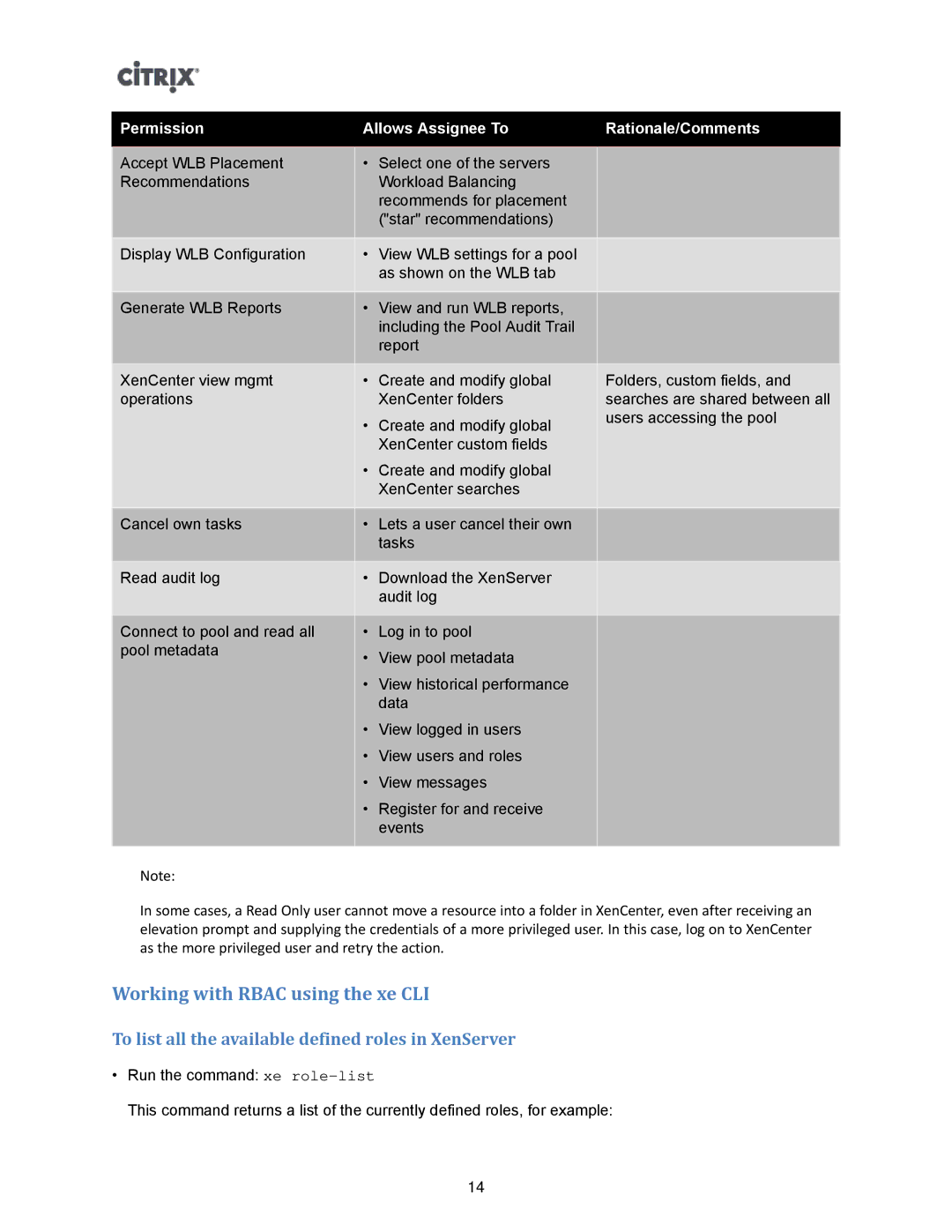
In some cases, a Read Only user cannot move a resource into a folder in XenCenter, even after receiving an elevation prompt and supplying the credentials of a more privileged user. In this case, log on to XenCenter as the more privileged user and retry the action.
Working with RBAC using the xe CLI
To list all the available defined roles in XenServer
•Run the command: xe
This command returns a list of the currently defined roles, for example:
14