Scanner Option Type
Page
Copy Reference
General Settings Guide
Manuals for This Machine
Security Reference
Other manuals
Manuals for DeskTopBinder Lite
Table of Contents
Managing Stored Files
Specifying Scan Settings
Storing Files
Displaying the List of Stored Files
Placing Originals 109 Software Supplied on CD-ROM 110
Settings
Specifications 115
105
Page
How to Read This Manual
Symbols
Names of Major Options
Page
Control Panel
Start key
Clear/Stop key
Mail
Network Scanner
FTP server
Scan to Folder
Store
Storing Files
This machine Client computer
Delivery server
Network Delivery Scanner
Network Twain Scanner
Installing Software
Quick Install
Twain Driver
DeskTopBinder
Click Twain Driver
Click DeskTopBinder Lite
Press Enter for Login Password
User Authentication
Login Using the Control Panel
Press Enter for Login User Name
PressUser Tools / Counter
Panel
Press User Tools / Counter Press Logout
Press Yes
Programming E-mail Addresses and Folders
Specifying How to Start Scanning
Getting Started
Preparation for Sending by E-mail
Sending Scan Files by E-mail
Mail Screen
Registration No
Manual Input
Press Switch Destination List
Sending Scan Files by E-mail
Press E-mail
Using a registration number to select a destination
Selecting a destination from the list
Press Registration No
Press Search by Dest. Name
Manual entry of an e-mail address
Searching for a destination Destination list
Press Manual Input
Select the Ldap server
Searching for a destination in the Ldap server
Press OK Select a destination Press Exit
Press Search Ldap Press Select Server
Select a destination Press Exit
Exclude Words The names
Press Attached File Press File Name
Checking selected destinations
Selecting a sender from the list
Press Attached File Press File Type
Return Receipt are displayed
Using a registration number to specify a sender name
Searching for a sender
Select the sender
Press User Dest. Name
To use Return Receipt you must
Press Subject / Message
Press Subject / Message Press E-mail Message
Selecting a message from the list
Manual entry of a message
Press Attach Subject
Specify the destination Specify the sender and a subject
Simultaneous Storage and Sending by E-mail
Press OK Place originals
Press Store File
Items that can be checked
Checking the E-mail Results
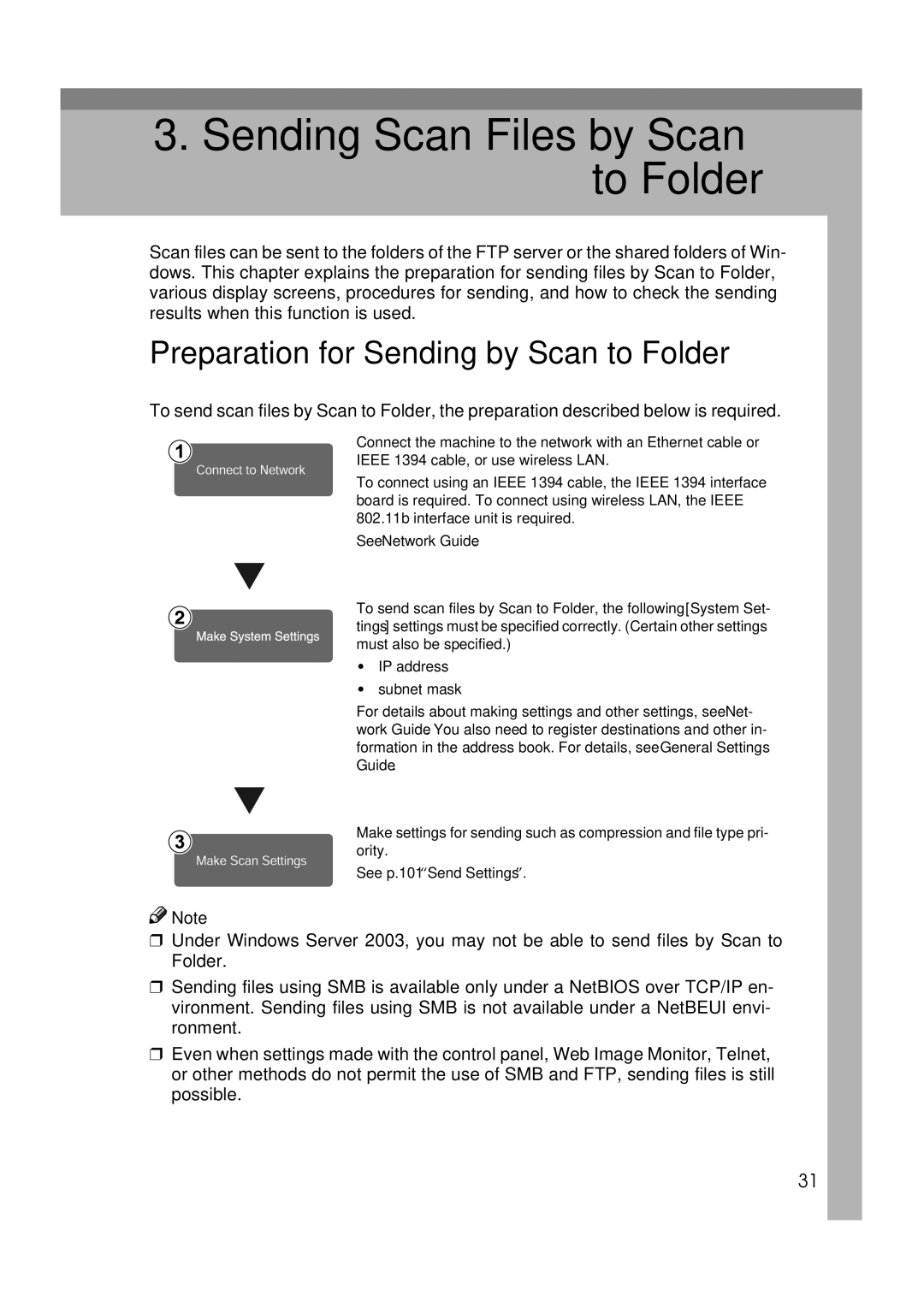
Preparation for Sending by Scan to Folder
Sending Scan Files by Scan to Folder
Scan to Folder Screen
Scan to Folder icon
Enter Destination
Preparation for Sending by Scan to Folder
Press Switch Destination List Press E-mail
Sending Scan Files by Scan to Folder
Specify the destination folder
To select more destination fold- ers, repeat step a
Using a registration number to select a destination folder
Selecting a destination folder from the list
Select the destination folder
Enter the user name
Enter the password Press OK
Press Enter Destination
Enter the path for the folder
Specifying a folder in the FTP server
Press FTP
Enter a server name
Enter the password
Enter part of the destination folder name
Searching for a destination folder in the destination list
Select the client computer that has the destination folder
Search by Folder Name
Search by Dest. Name and Search by Folder Name
Press OK Select a destination folder Press Exit
Enter a file name
Simultaneous Storage and Sending by Scan to Folder
Checking the Scan to Folder Results
Storing Files
Storing Files
Press OK Specify file information
Storage Procedure
Make the settings for storing scan files
Press Store File Press Store Only
Specifying file information
Press User Name
Select the user name
Specifying a password
Press Password
Specifying a file name
Displaying the List of Stored Files
Display the list of stored files
Press Select Stored File Press Manage / Delete File
Viewing the List
Keys for searching for files
Keys for changing file information
Send
Searching for Files
Searching by user name
Manage / Delete File
Select a file
Searching by file name
On the screen with the list of stored
Files, press Search by File Name
Viewing a list of stored files using DeskTopBinder
Checking Stored Files from a Client Computer
To select multiple files, repeat step B
Viewing a list of stored files using Web Image Monitor
Press Delete File
Managing Stored Files
Deleting Files
Changing File Information
Press Change File Name
Changing the user name
Changing the file name
Press Change User Name
Press Change Password
Changing the password
Storing Files
Delivering Scan Files
Preparation for Delivering
Attach Senders Name Return Re- ceipt Attach Subject
Switch Destination List/Search
Network Delivery Scanner Screen
Network delivery scanner icon
Delivery Procedure
Press Switch Destination List Press Delivery Server
Delivering Scan Files
Searching for a destination
To select more destinations, re- peat step a
To select more destinations, re- peat step B
Enter the destination Enter part of the destination Name
Manual entry of a destination
Press Search Address Book Press Search by Dest. Name
Search by Comment
Specify the sender sender of the file if necessary
Searching for a sender
Press the subject Urgent
Simultaneous Storage Delivery
Press Store File
Press UPrev. or TNext to
Checking the Status of Delivery
Delivering Scan Files
Preparation for Using the Network Twain Scanner
Using the Network Twain Scanner Function
Scanning Originals
Editing and printing scan files
Using the Network Twain Scanner Function
Scan Type
Specifying Scan Settings
Resolution
Press Scan Settings
Scan Size
Edit
Auto Detect Reference
Select Original Orientation or Origi- nal Exit
Specifying the Orientation and Output Tray of the Original
Orientation selection
Specifying the Output Tray for the Original
Open the Scanner Properties dia- log box
For a Network Twain Scanner
Scanning Multiple Pages into a Single File
Make sure Next Original Wait is not selected
Place the originals
Select Next Original Wait
When a Time Limit Is Not Specified for Additional Originals
After all originals are scanned Press the # key
To scan additional originals, load them
Press the program number you want to register
Programs
Registering a Program
Press m Register
Press Register
Recalling a Program
Press B Recall
Press the number of the program you want to recall
Press Change Name
Changing the Program Name
When Scanning Is Not Performed as Expected
When the Delivery Function Does Not Work
If Your Machine Does Not Operate As You Want
Stored Files Cannot Be Edited
When Stored Files Cannot Be Accessed
Network Cannot Be Browsed When Sending a Scan File
Twain Driver Cannot Be Started
List...Please
Operations are not possible when messages appear
When an Error Message Appears on the Control Panel
When a Message Is Displayed
Connection with Ldap server has
Exceeded max. number of alphanumeric
Memory is full. Cannot scan.
Selected files contain files that
Specified group contains some
Another user is already logged
When an Error Message Appears on the Client Computer
Mode
Troubleshooting
Scan Settings
Scanner Features
Destination List Settings
Send Settings
Administrator Tools
Change the setting
Adjusting Scanner Features
Next Original Wait at Off
Settings
Scan Settings
Default Scan Settings
Enter the original size with the number keys
Change Initial Mode
Press Custom Size on the Scan Size Setting screen
Selecting a custom size
Press Auto Detect
Automatically Detecting the Vertical Measurement Length
Send Settings
Destination List Settings
Print Scanner Journal
File Type Priority
Compression Black & White
Print & Delete Scanner Journal
Store File Priority
Administrator Tools
Mail Information Language
Menu Protect
104
Appendix
Relationship between Resolution and original size
106
107
When Using as a Network Twain Scanner
Deg
Placing Originals
System requirements
Software Supplied on CD-ROM
Table of files
File storage folder
Software installed with DeskTopBinder
Specifications for Transmission/Store/Delivery Functions
Transmission
Mail
Simultaneous Transmission
Scan to Folder
Network delivery scanner function
Specifications
Index
117
118
Means Power ON. c means Stand by
EN USA B765-8707


 Note