Quick Steps For Configuring Authentication Servers
Managing Authentication Servers
page 20-4
OmniSwitch 6600 Family Network Configuration Guide
April 2006
Quick Steps For Configuring Authentication
Servers
1
For RADIUS or LDAP servers, configure user attribute information on the servers. See
2
Use the
aaa radius-server
and/or the
command to configure the authentication
server(s). For example:
-> aaa radius-server rad1 host 10.10.2.1 10.10.3.5 key amadeus
-> aaa ldap-server ldap2 host 10.10.3.4 dn cn=manager password tpub base c=us
Note.
(
Optional
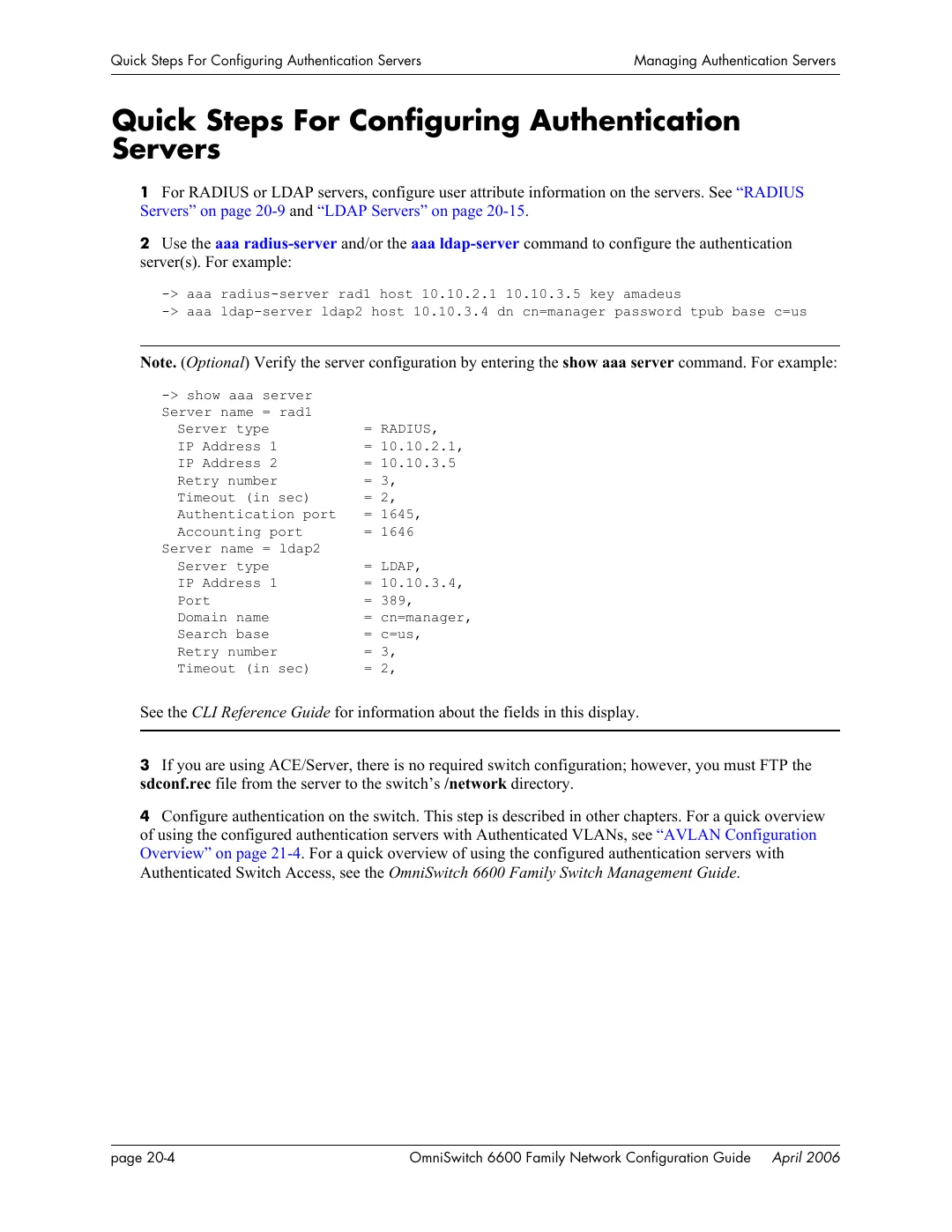
) Verify the server configuration by entering the
show aaa server
command. For example:
-> show aaa server
Server name = rad1
Server type
= RADIUS,
IP Address 1
= 10.10.2.1,
IP Address 2
= 10.10.3.5
Retry number
= 3,
Timeout (in sec)
= 2,
Authentication port
= 1645,
Accounting port
= 1646
Server name = ldap2
Server type
= LDAP,
IP Address 1
= 10.10.3.4,
Port
= 389,
Domain name
= cn=manager,
Search base
= c=us,
Retry number
= 3,
Timeout (in sec)
= 2,
See the
CLI Reference Guide
for information about the fields in this display.
3
If you are using ACE/Server, there is no required switch configuration; however, you must FTP the
sdconf.rec
file from the server to the switch’s
/network
directory.
4
Configure authentication on the switch. This step is described in other chapters. For a quick overview
of using the configured authentication servers with Authenticated VLANs, see
. For a quick overview of using the configured authentication servers with
Authenticated Switch Access, see the
OmniSwitch 6600 Family
Switch Management Guide
.