Configuring Authenticated VLANs
Setting Up Authentication Clients
OmniSwitch 6600 Family Network Configuration Guide
April 2006
page 21-21
Logging Into the Network Through an AV-Client
Once the AV-Client software has been loaded on a user’s PC workstation, an AV-Client icon will be
created on the Windows desktop in the task bar. Follow these steps to log into the authentication network:
1
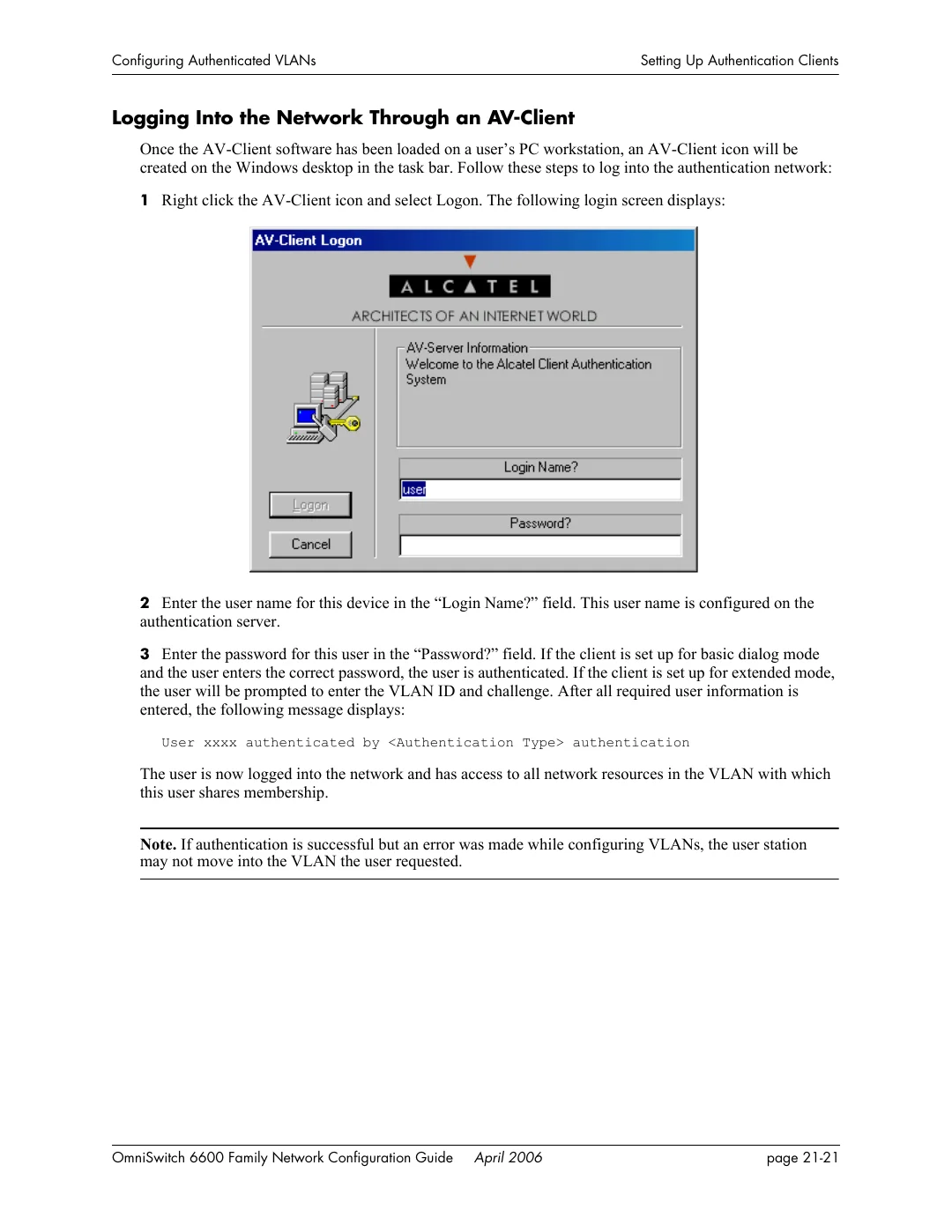
Right click the AV-Client icon and select Logon. The following login screen displays:
2
Enter the user name for this device in the “Login Name?” field. This user name is configured on the
authentication server.
3
Enter the password for this user in the “Password?” field. If the client is set up for basic dialog mode
and the user enters the correct password, the user is authenticated. If the client is set up for extended mode,
the user will be prompted to enter the VLAN ID and challenge. After all required user information is
entered, the following message displays:
User xxxx authenticated by <Authentication Type> authentication
The user is now logged into the network and has access to all network resources in the VLAN with which
this user shares membership.
Note.
If authentication is successful but an error was made while configuring VLANs, the user station
may not move into the VLAN the user requested.