HP Classroom Manager
HP Classroom Manager
Table of Contents
HP Classroom Manager
Configuring the Student Workstation
Contact Us
Client/Student
Conventions Used
Terminology Used Control/Tutor
Available Client
Deployment Scenarios
Features Not Available on HP MultiSeat
Decide what functions to install
∙ Traditional PC Teacher and MultiSeat Students
Starting the Installation
System Pre-Requisites
License Information
Existing Installation Detected
HP Classroom Manager License Agreement
∙ Modify
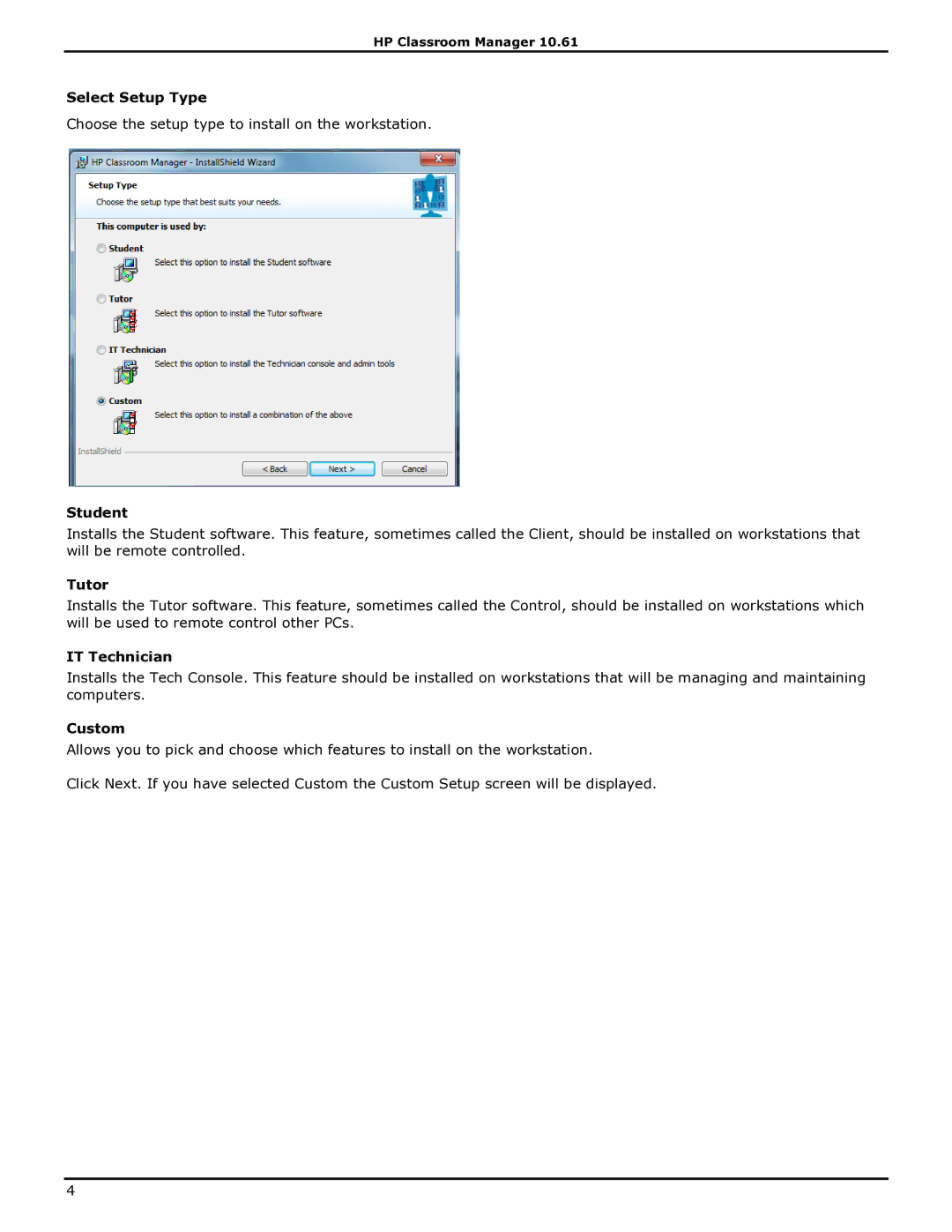
Tutor
Select Setup Type
Student
IT Technician
Add Configurator Start Menu Shortcut
Custom Setup
Install Configurator
Tutor Console
Creating an administrative network installation
Silent Installation
To perform a silent install
General Install Directory
HP Classroom Manager Deploy Remote Install Utility
Install Configuration Options Dialog
Icons
Planning
Installing the Deploy Utility
Starting HP Classroom Manager Deploy
Deploying on Windows XP
Preparing a Deployment
Deploy an HP Classroom Manager Package
General tab
Message Tab
Options Tab
Acknowledgement Tab
Restart Tab
Deploy a Client Configuration
Deploy an HP Classroom Manager License file
Remote Uninstall
Log Files
Pre-Define Settings For a Future Deployment
To Prepare The Settings For a Future Deployment
To Run The Deployment
Printing a Log File
HP Classroom Manager Deploy Room Mode
To view Log Files
Deleting a Log File
Starting HP Classroom Manager
Starting HP Classroom Manager
Control window is the primary interface for
Control Window
Title Bar
Quick Execute Bar
Toolbar
Quick View Bar
Lesson Bar
Tutor Toolbar
Status Bar
To Prompt Students to Login
Student Automatic Login
To automatically login Student machines
Student Register
Required Student Details
Student Register Dialog
Class Details
Auto Save Register
Sign Out
To display the Login name of Students
To Save Students Login Name
Registration Report
To arrange icons
Setting a background
Working with Classroom Layouts
To load a previously saved Layout
Client Power On
Power Management Power on/Power off
To set a background
To Power On an HP Classroom Manager Client
Finding and Connecting to Students
Client Power Off
To Power Off an HP Classroom Manager Client
Known List of Students
Connect to Students via Room Mode
Connecting to Students
To connect to the Known list of Clients
To add Available Clients to the Known List
Creating a class for Students to join Publish Class
To remove Clients from the Known List
Creating a class for Students to join
To join a class
To Disable the Disconnect Prompt
Configuring HP Classroom Manager For Subnet Browsing
Client Disconnects from an Active Session
Understanding IP Addresses
Using a Name Server/Gateway to Find Student PCs
Installing & Configuring a Name Server
Gateway Configuration General Properties
Gateway Configuration Creating Keys
HP Classroom Manager
Gateway Configuration Utility Licenses Tab
Enable encryption of communications to remote computers
Gateway Configuration Utility Security Tab
Working with Groups
To create a Group
Group Leaders
To change the members of a Group
Assigning a Group Leader
Customize Client and Group Icons
Lock/Unlock Students Mouse and Keyboard
To blank a Clients screen when locked
To display a graphic when locking a Client workstation
This chapter…
Viewing Student screens
To View a Client
To change the Viewing mode
Other View window options are Scaling to Fit
Sending Ctrl+Alt+Delete while viewing
Blank All Client Screens
Blanking the Clients screen while Viewing
Viewing multiple screens simultaneously
Remote Clipboard
Scanning Students
HP Classroom Manager
Capture
Scanning multiple screens simultaneously
Full Screen
To end the Scan
Lock
Monitor Mode
Maximize
Chat
Show Active Application
Auto-Fit Size of Student Thumbnail
Changing The Thumbnail Refresh Rate
Show Active Web Site
Identify Students Instant Messenger Activity
Messenger Monitoring
Show Help Requests
Monitor Instant Messenger
Clear Instant Messenger History
View Instant Messenger History
Block Instant Messenger
Show History for
Export
Keyboard Monitoring
Save
Print
Setting up Word Lists
View Typing History
Capture a Students screen whilst Viewing
Screen Capture
Capture a Students screen whilst Scanning
To Show a Control screen
Showing to Students
Select what you would like to Show
Show Hotkeys
Enable Audio
Select Recipients
Send Physical Fonts
To end a Show while Suspended
To Resume a Show while Suspended
To set a Show Leader while Suspended
To create a Show Leader
Show Leader
Exhibit Showing a Students screen on Student screens
To Show a Students screen
Suspend or Stop the Exhibit
To Switch Between Full Screen and Windowed Mode
Interactive Whiteboard
To Suspend The Exhibit
To show the Whiteboard to Students
Whiteboard Leader
Annotating Screens
To annotate a Show screen
To annotate a screen while Exhibiting
Annotate Toolbar
To annotate a screen while Viewing
File
Audio Monitoring
Record Audio Activity
Volume Control
Listen to Student Audio
Mute Sound at the Student
Using Audio while Showing
Using Audio Support
Using Audio while Viewing
Announce Function
Adjusting Audio settings
HP Classroom Manager Video Player
HP Classroom Manager Video Player Control Panel
Play a Video file on a workstation
Open
Using Replay Files
Include Audio
Record Replay Files For All Students
Record Replay Files for Individual Students
Prefix Files With Client Name
Record Physical Fonts
Record Replay Files at the Tutor
Watching Replay Files
At the Control
At the Client
Replay Window Control Panel
Rewind
Showing Replay Files to Students
Show Application
To Show an Application
Chatting to Students
Chat Progress
Chat Window
Window Menu
Send Message
Sending a Message to Students
Creating Preset Messages
Send a message whilst Viewing
To Send a Pre-Defined Message
Help Requests
To request help
To display current Help Requests
Transferring Files
To copy files and Directories from a Control to a Client
Deleting files and directories
To copy files and Directories from a Client to a Control
To transfer files between Clients
To delete a file
To Distribute Files to a defined Group of Clients
Distributing Files
You can Distribute Files to
To Distribute Files to a selected number of Clients
Sending and Collecting Work
To Send Work Using Quick Send
To Send work
To Collect Work Using Quick Collect
To Send Work Using Advanced Send
To Collect work
To Collect Work Using Advanced Collect
To change the Properties of an Operation
Remotely Executing applications on Student workstations
To Execute an application on a Client Workstation
To Execute an application on a Group of Clients
To remove a saved Executable application
User Defined Tools
To edit a saved Executable application
To Add a Tool
Rebooting or Logging out Students
Web Control Module
Auto Arrange
Large Icons Details
By Name
Ascending
Setting up an Approved or Restricted Web Site List
Remove a Website from your Approved or Restricted List
Add a Website to your Approved or Restricted List
Apply Approved or Restricted Web Sites
Block All Web Access
End Approved or Restricted Web Sites
Block FTP Sites
Apply Safe Search Mode
Include Proxy Overrides
Create a new Website List
Show Web History for
Co-Browser
View Web History
To open a Co-Browse Session
To Create a New Tab
Using the Co-Browser
To Approve/Restrict Websites
To Free Students
Lock/Unlock Students in the Co-browser
To Lock Students
To Restrict Students
Application Control Module
Close current/ running applications on a Student workstation
Launch an application on all connected Students
Restricted Applications
Remove an application from your Approved or Restricted List
Add an application to your Approved or Restricted List
Apply Approved or Restricted Applications
Open an existing Application List
End Approved or Restricted Applications
Create a new Application List
Save an Application List
View Application History
Show Application History for
Basic procedure for sending a survey to Students is
Student Surveys
Save Survey Results
Show Survey Results to Students
Print Survey Results
Survey Lists
Printer Management
Manage Questions and Responses
Pause Printing
Using Print Management
Setting Print Thresholds
Block all Printing
Resume Printing
Delete Print Jobs
Deleting Duplicate Print Jobs
Printer Properties
View Print History
Unrestricted Access
Block Access to CD/DVD or USB Devices
Read Only Access to CD/DVD or USB Devices
Device Control
Mute Sound on Student Workstations
Disable Execute
Tutor Profiles
To Create a Tutor Profile
Student Journal
Manage Student Resources
To Create a resource list
Items that can be included within the Journal are
Adding Notes/Images to the Journal
To create a Lesson Plan
Lesson Planner
Class Wizard
Managing a Lesson Plan
What time does this Lesson finish?
Power Options
Lesson Details
Startup Options Create a Journal
To Create a Class List
Class Lists
To Connect to a Class List
Managing Class Lists
Student Toolbar
To End a Class List
Edit Class Lists
HP Classroom Manager
Giving Rewards to Students
Student Rewards
Removing Rewards
Network Settings
Send Keep Alive Packets
Room Settings
Port
Use Name & Connectivity Server Gateway
Security Settings
Audio Settings
User Interface Settings
While Viewed Silent Mode
Advanced Settings
Student Identification Student Name
Student Journal Settings
Terminal Services Settings
Performance
Administration
Start Options
Student Selection
Start Scanning
At Startup Start Viewing
Start Showing
Restrictions
Tutor Identification
TCP/IP Settings Connect by Hostname DHCP/WINS Networks
Browsing Subnets used when browsing for students
Name
Access Point Speed
Settings
Wireless Network
Accelerate Browse
Student Selection
Performance Settings
Low bandwidth mode
Color reduction
Fixed List Mode Connect to a List of Students
Room Mode Connect to Students in Rooms
Browse Mode Browse and connect to Students starting with
Prompt at startup
Options Password
Administration Security Settings
Protect the Configuration
Redirect URL
Administration Profiles
Class List Folder
Folder Testing Console Report Folder
Testing Console Exam Folder
Audio Recordings Folder
Tech Console
Hardware and Software Inventory
Test Designer
To Retrieve a Client Inventory
Questions Interface
Test Designer User Interface
Drag And Drop Text
Create Questions
Eight question types are Multi Choice
Drag And Drop Image
Drag and Drop Text